Seeing the dreaded message “Wi-Fi: No hardware installed” on your MacBook can be frustrating—especially when you’re in the middle of important work. This error means your Mac is unable to detect the Wi-Fi hardware, leaving you without an internet connection.


Don’t panic. this issue is more common than you think, and it can often be resolved without a trip to the repair shop.
In this blog post, we’ll walk you through simple solutions to fix the MacBook “No hardware installed” Wi-Fi error, plus what to do if nothing works.
Why This Happens
This issue usually appears when:
- Your MacBook has recently undergone a macOS update or upgrade
- There’s a hardware failure (loose connection or Wi-Fi card problem)
- NVRAM, SMC, or network settings have become corrupted
- There was physical damage, especially to older MacBook models
How to Fix ‘Wi-Fi: No Hardware Installed’ on MacBook
1. Restart Your Mac
A simple restart might reinitialize the Wi-Fi hardware if it’s just a temporary glitch.
Steps:
- Click the Apple menu
- Choose Restart
- Once it reboots, check the Wi-Fi icon
2. Reset SMC (System Management Controller)
SMC handles hardware-related functions. Resetting it often fixes Wi-Fi issues.
How to Reset SMC (System Management Controller) on Mac
SMC reset can fix hardware issues, including Wi-Fi problems. Follow the instructions based on your Mac model:
Apple Silicon Macs (M1, M2, M3)
- ✅ No SMC reset needed
- Simply shut down your Mac and turn it back on.
Intel MacBook (2018–2020) – With T2 Chip
Steps:
- Shut down your Mac.
- Press and hold:
Control + Option (Right side) + Shift (Right side) - While holding, press the Power button.
- Hold all 4 keys for 7 more seconds.
- Release all keys.
- Wait a few seconds and turn your Mac back on.
Older Intel MacBook (Pre-2018) – No T2 Chip
Steps:
- Shut down your Mac.
- Press and hold:
Shift (Left) + Control (Left) + Option (Left) + Power - Hold for 10 seconds.
- Release and turn your Mac back on.
Intel Desktop Macs (iMac, Mac mini, Mac Pro)
Steps:
- Shut down your Mac.
- Unplug the power cable.
- Wait 15 seconds.
- Plug it back in and wait 5 seconds.
- Turn on your Mac.
Not Sure If You Have a T2 Chip?
Go to: Apple menu > About This Mac > System Report > Controller
If you see Apple T2 Security Chip, follow the T2 steps above.
Would you like me to design an infographic version of this section too? It works well as a quick-reference image.
3. Reset NVRAM/PRAM
This clears stored settings and might help with Wi-Fi detection.
Steps:
- Shut down your Mac
- Turn it on and immediately hold: Option + Command + P + R
- Keep holding for about 20 seconds, then release
4. Boot into Safe Mode
Safe Mode can help isolate software issues that may be affecting hardware.
On Intel Macs:
- Restart your Mac and immediately hold Shift
- Release when you see the login screen
On Apple Silicon (M1/M2/M3):
- Shut down your Mac
- Hold the Power button until you see “Loading startup options”
- Choose your disk, then press and hold Shift while clicking Continue in Safe Mode
Then check if Wi-Fi works in Safe Mode.
5. Reinstall macOS (Without Losing Data)
If a software bug is the cause, a fresh macOS install can help.
- Boot into macOS Recovery (Command + R at startup)
- Select Reinstall macOS
⚠️ Don’t erase your disk—this will reinstall macOS without deleting your files.
6. Check with Apple Diagnostics
Apple Diagnostics can detect if it’s a hardware issue.
Steps:
- Shut down the Mac
- Power it on and immediately press D
- Follow the prompts
If the test shows a Wi-Fi hardware issue, it’s best to contact Apple Support.
Bonus Tip: Back Up Before You Tinker
If you’re planning to reset your Mac or reinstall macOS, don’t forget to back up your data.
You can:
- Use Time Machine
- Back up to an external drive
- Or use iCloud
Still Not Working?
If none of the above helps, it could be a hardware failure, such as:
- Disconnected or damaged Wi-Fi card
- Logic board issue
In that case, your best move is to visit an Apple Store or Authorized Service Provider.
While the “No Wi-Fi hardware installed” error may seem serious, it’s often fixable with a few steps—especially if it’s caused by macOS glitches or temporary hardware miscommunication.
But always back up your data first, and if in doubt, let Apple experts take a look.
Bonus Tools for Photo Lovers and Creators
While you’re optimizing your Mac, don’t forget to keep your photos organized and secure!
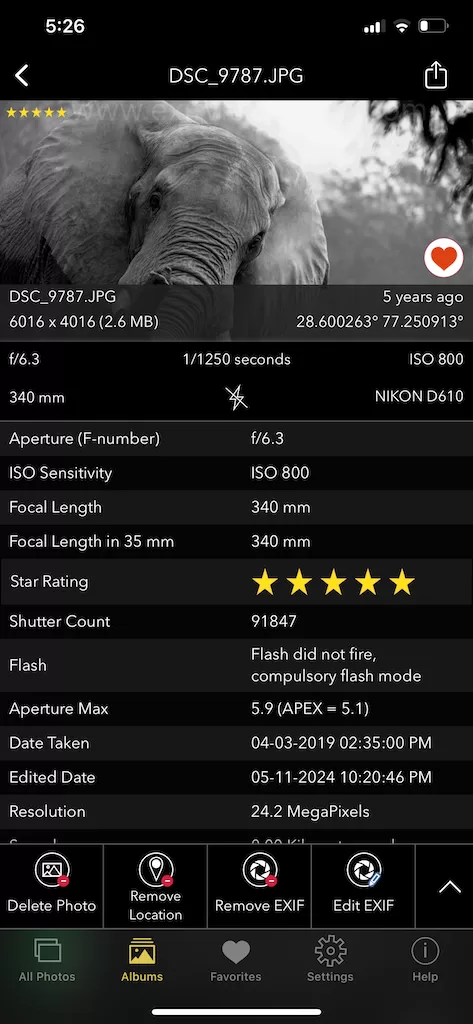
- Use EXIF Viewer by Fluntro to check and remove hidden metadata like location or camera settings before sharing images.
- Try Photo Search on the App Store to instantly find photos on your iPhone by searching text, dates, or locations—even in large libraries.
- And if you love cute expressions, Check out Kiana, our adorable baby elephant sticker pack on iMessage. It’s a fun way to express how you’re feeling, without typing a word!