Recording your screen on a Mac is a must-know skill for anyone creating tutorials, YouTube videos, software demos, online classes, or gameplay recordings. The best part? macOS already includes everything you need to screen record with sound — you just need to know how to set it up correctly.
In this complete guide, you’ll learn how to screen record on MacBook Air, MacBook Pro, and iMac with sound, including microphone audio and internal system sound (like music or app sounds).
We’ll cover built-in macOS tools and free open-source apps like Background Music and BlackHole that make it even better.
1. How to Screen Record on Mac Using the Screenshot Toolbar (Built-in)
If your Mac runs macOS Mojave (10.14) or newer, the easiest built-in way to record your screen is using the Screenshot Toolbar.
Step-by-Step Guide
- Open the Screenshot ToolbarPress Command (⌘) + Shift + 5 on your keyboard.The toolbar will appear at the bottom of your screen.
- Choose Recording TypeYou’ll see two recording buttons:
- 🎥 Record Entire Screen
- 📐 Record Selected Portion
- Turn On Sound Recording
- Click Options
- Under Microphone, select Built-in Microphone (for your voice)
- If you also want system sounds (like YouTube or app audio), keep reading — that’s covered in Section 2.
- Set Save Location and Timer
- Choose where to save your video (Desktop, Documents, or custom folder).
- Optionally, set a timer (5 or 10 seconds) to prepare before recording.
- Start RecordingClick Record to begin capturing your screen.To stop, click the Stop icon (⏹) in the menu bar or press Command + Control + Esc.
- Edit and SaveAfter stopping, a preview thumbnail appears in the bottom-right corner.Click it to trim, share, or save your video.
✅ Best for: Quick tutorials, voice-over demos, and educational videos.
2. How to Record Mac Screen with Internal Audio (System Sound)
By default, macOS doesn’t allow recording internal audio due to privacy policies.
However, two free tools — Background Music and BlackHole — make this possible.
Let’s start with the easiest one.
2.1 Using Background Music (Easiest Method for Internal Audio)
If you want to capture YouTube sound, Zoom audio, or game music along with your screen, Background Music is the most convenient option.
What is Background Music?
Background Music is a free, open-source macOS app that lets you:
- Record internal system audio with your screen
- Control the volume of each app separately
- Automatically pause music when other apps (like Zoom) use audio
- Route sound directly into screen recording tools like QuickTime Player or the Screenshot Toolbar
Step-by-Step: Record Mac Screen with Background Music
Step 1: Install Background Music
- Visit https://github.com/kyleneideck/BackgroundMusic
- Scroll to the Releases section and download the latest BackgroundMusic.pkg installer.
- Open it and follow the on-screen instructions.
- After installation, you’ll see the 🎵 Background Music icon in your Mac’s menu bar.
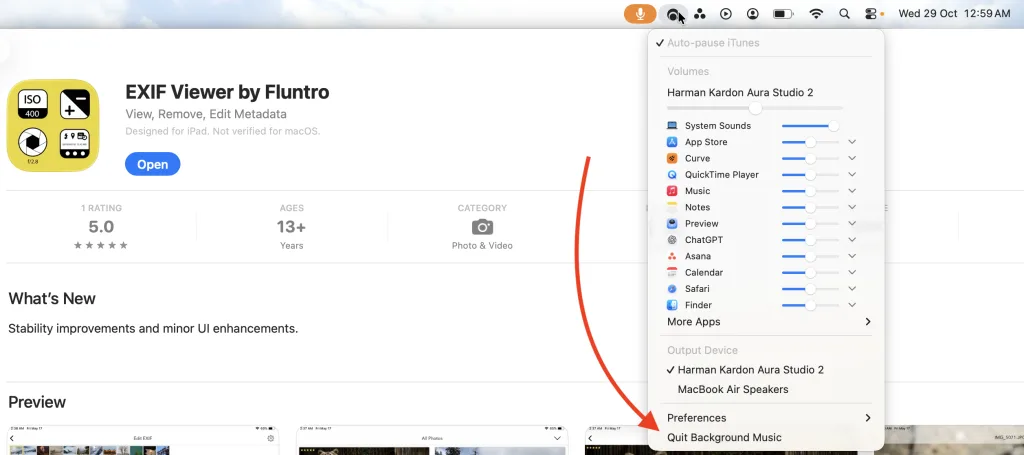
Step 2: Set Background Music as Audio Output
- Click the 🎵 icon → Select Background Music as your Output Device.
- You can also verify in System Settings → Sound → Output → Background Music.
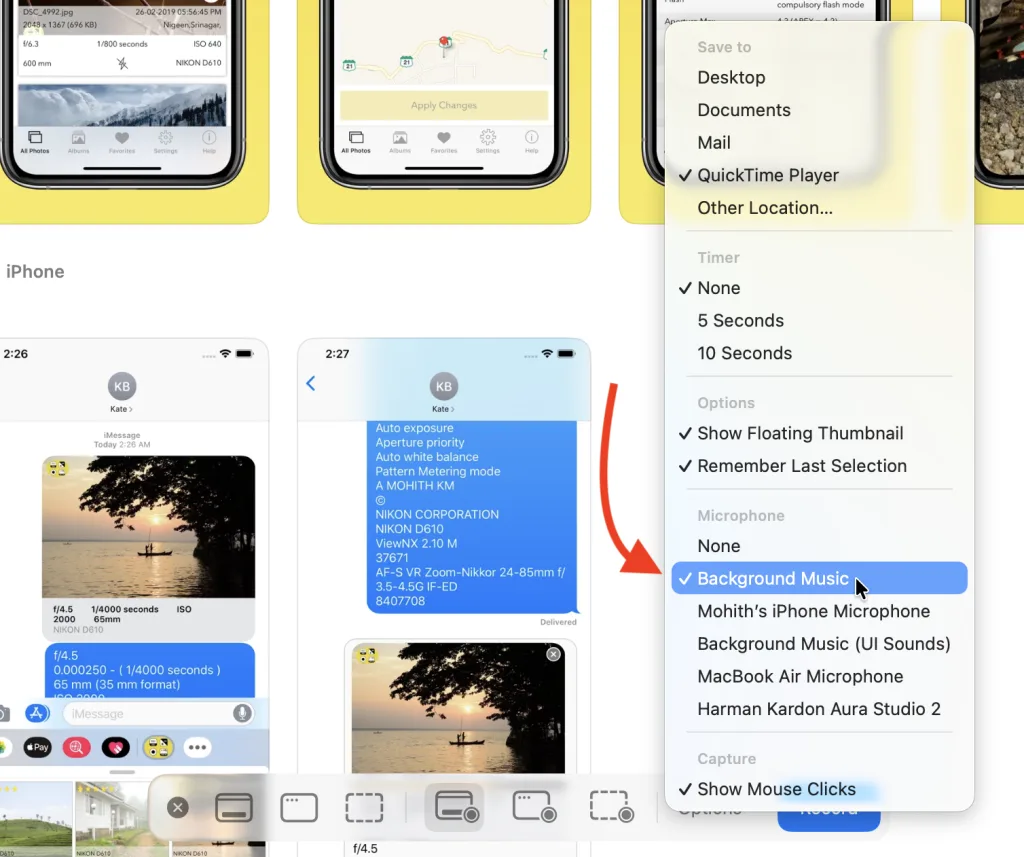
Step 3: Start Screen Recording
Option 1: Using Screenshot Toolbar
- Press Command + Shift + 5
- Click Options → Microphone → Background Music
- Choose screen area and click Record
Option 2: Using QuickTime Player
- Open QuickTime Player → File → New Screen Recording
- Click the arrow next to the record button
- Under Microphone, choose Background Music
- Start recording
Now, everything playing on your Mac (system sounds, app audio, etc.) will be recorded perfectly.
Step 4: Restore Normal Audio Output
After finishing:
- Click the Background Music icon again
- Switch back to MacBook Speakers or your preferred headphones
Why Use Background Music?
| Feature | Background Music | BlackHole |
|---|---|---|
| Installation | One-click installer | Manual setup required |
| Volume control for apps | ✅ Yes | ❌ No |
| Auto-pauses for calls | ✅ Yes | ❌ No |
| CPU usage | Low | Moderate |
| Recommended for | Beginners | Advanced users |
✅ Best for: Recording system sounds easily (YouTube, gameplay, Zoom, etc.)
2.2 Using BlackHole (Alternative Virtual Audio Driver)
BlackHole by Existential Audio is another excellent free virtual audio driver for recording internal sound.
It’s a bit more technical to set up than Background Music but works reliably.
Steps:
- Download and Install
- Visit https://existential.audio/blackhole/
- Download BlackHole 2ch and install it.
- Create Multi-Output Device
- Open Audio MIDI Setup (search via Spotlight).
- Click + → Create Multi-Output Device.
- Check both MacBook Speakers and BlackHole 2ch.
- Set Output Device
- Go to System Settings → Sound → Output → Choose Multi-Output Device.
- Record with QuickTime or Screenshot Toolbar
- In Options → Microphone, choose BlackHole 2ch.
- Start recording — your screen and internal sound will be captured.
✅ Best for: Advanced users or those needing professional routing control.
3. How to Record Screen with Microphone (Voice Narration)
If you’re recording a tutorial, class, or commentary video, you can include your voice using the built-in mic or an external microphone.
Steps:
- Plug in your external microphone (if available).
- In Screenshot Toolbar → Options → Microphone, select your mic.
- Start recording — your voice will be captured alongside your screen.
Pro Tip: Use headphones while recording to avoid echo.
4. Recording via QuickTime Player
QuickTime Player remains one of the most reliable built-in tools for recording your Mac screen.
How to Use QuickTime for Screen Recording
- Open QuickTime Player.
- Go to File → New Screen Recording.
- Click the arrow ▼ next to the record button.
- Choose your Microphone (Built-in or Background Music).
- Click Record → Select area or full screen → Start Recording.
- Stop recording using the ⏹ icon in the menu bar.
- Save your video (File → Save).
5. Editing Your Recording
Once your video is recorded, you may want to trim, crop, or enhance it before sharing.
Quick Editing Tools
- QuickTime Player: Edit → Trim
- iMovie: Add transitions, titles, or background music
- Final Cut Pro: Professional-level editing and sound balancing
6. Troubleshooting Common Issues
| Problem | Possible Cause | Solution |
|---|---|---|
| No sound in recording | Microphone not selected | Check Screenshot Toolbar → Options → Microphone |
| Internal sound not captured | Output not set to Background Music or BlackHole | Set correct output in System Settings |
| Recording lag | Too many apps running | Close background apps |
| Audio echo | Speaker + mic feedback | Use headphones or lower volume |
7. Pro Tips for Perfect Recordings
- Record in 1080p or 4K for crisp quality.
- Use Background Music for internal audio and microphone for narration simultaneously.
- Enable Show Mouse Clicks under Screenshot Toolbar → Options for tutorials.
- Keep your desktop tidy for a clean, professional look.
- Use external mics for crystal-clear audio.
8. Advanced Options (Third-Party Apps)
If you want additional features like webcam overlay, real-time annotations, or custom transitions, try:
- 🎥 OBS Studio (Free & open source)
- ✨ ScreenFlow (Paid, professional-grade)
- 💼 Camtasia (Powerful editing & effects)
9. Where Are My Recordings Saved?
By default, macOS saves screen recordings to the Desktop.
To change this:
- Press Command + Shift + 5 → Options → Save To → Choose your folder.
10. Summary Table
| Method | Audio Type | Tool | Ease |
|---|---|---|---|
| Screenshot Toolbar | Microphone only | Built-in macOS | ⭐ Easy |
| QuickTime Player | Microphone only | Built-in macOS | ⭐ Easy |
| Screenshot/QuickTime + Background Music | Internal + Mic | Background Music | ⭐⭐ Easiest |
| Screenshot/QuickTime + BlackHole | Internal + Mic | BlackHole 2ch | ⭐⭐⭐ Medium |
| OBS Studio | Internal + Mic + Webcam | OBS Studio | ⭐⭐⭐⭐ Advanced |
Conclusion
Screen recording on your MacBook Air, MacBook Pro, or iMac has never been easier.
Whether you’re making tutorials, recording gameplay, or sharing meetings, you can use the Screenshot Toolbar or QuickTime Player for free — and add Background Music or BlackHole for high-quality internal audio.
Once you’ve captured your video, you can trim, edit, or enhance it with iMovie or Final Cut Pro before sharing it online.
🌟
Tip
If you work with photos or videos regularly, try EXIF Viewer by Fluntro — a professional iPhone app that lets you view and edit photo metadata (camera model, lens, ISO, location, DPI, etc.). It’s perfect for photographers, content creators, and editors who need complete control over their image details.
Also check out Photo Search by Fluntro — a smart tool to find photos quickly by date, location, or text.
✅ Final Takeaway:
For the smoothest experience, use Screenshot Toolbar + Background Music.
It’s the fastest, most reliable, and beginner-friendly way to screen record on MacBook with sound in 2025.
Check Out Our EXIF Viewer by Fluntro, Photos Search by Fluntro and Cute Stickers App for Messages: https://exifviewerapp.com
LEARN MORE ABOUT FLUNTRO APPS FOR PHOTOGRAPHERS
1. EXIF VIEWER BY FLUNTRO
VIEW, EDIT, REMOVE EXIF METADATA FOR PRIVACY
Knowing whether an app contacts external servers is equally important. It helps you understand where your data is going, who might have access to it, and how it affects your device’s performance and security. By regularly checking your app privacy reports, especially on iOS, you can stay informed about these connections and take action to protect your data.
By being proactive about your digital privacy, you can navigate the online world with confidence, ensuring your personal information stays safe and secure.
Appstore link :- https://apps.apple.com/us/app/exif-viewer-by-fluntro/id944118456
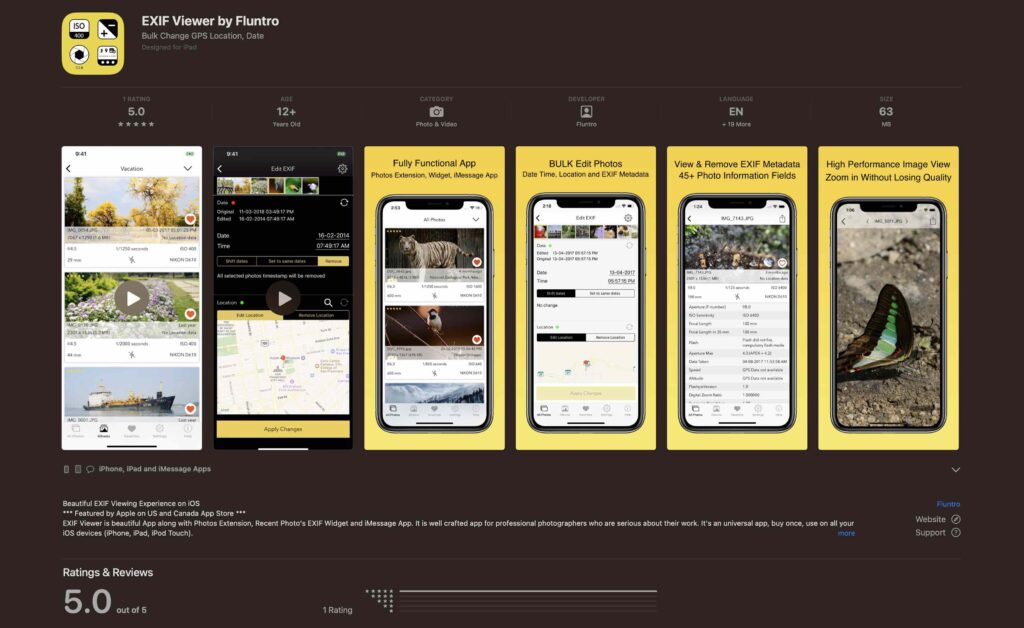
EXIF metadata is an invaluable resource for photographers at all skill levels. It provides insights into your photography, helps you troubleshoot issues, and offers a means of proving authorship and copyright. So, the next time you capture that breathtaking shot, don’t forget to delve into the EXIF metadata – it’s a treasure trove of information waiting to be explored, and it might just be the key to unlocking your photography potential.
https://youtube.com/watch?v=ycz0b0uDn9A%3Ffeature%3Doembed
2. PHOTOS SEARCH BY FLUNTRO
YOUR ULTIMATE PHOTO DISCOVERY COMPANION!
Photos Search app takes image searching to a whole new level by allowing you to search for text within photos effortlessly. Unleash the potential of your visual content and discover a seamless way to find and organize your images based on the words they contain. Whether you’re a professional photographer, an art enthusiast, or simply someone who loves exploring beautiful imagery, PhotoSearch is here to make your search for photos a delightful and hassle-free experience.
AppStore Link: https://apps.apple.com/app/photos-search-by-fluntro/id6471649312

Get two apps by Fluntro Team :Exclusive Bundle Offer

“Exif Viewer” for $2.99 and “Photos Search” for $4.99
Just for $5.99 instead of $7.98
