How to check DPI of an image on your iPhone or iPad
Search for “EXIF” App on Appstore and decide on any EXIF Viewer Apps that allows you to view “DPI”. You may also consider our Exif Viewer App “Exif Viewer by
By Mohith K MUpdated 2 min read
Search for “EXIF” App on Appstore and decide on any EXIF Viewer Apps that allows you to view “DPI”. You may also consider our Exif Viewer App “Exif Viewer by Fluntro” which also displays DPI, Image resolution and much more.
Step by step instructions to check DPI on iPhone and iPad.
- DPI Would be displayed on exif details screen, as shown in screenshots below.

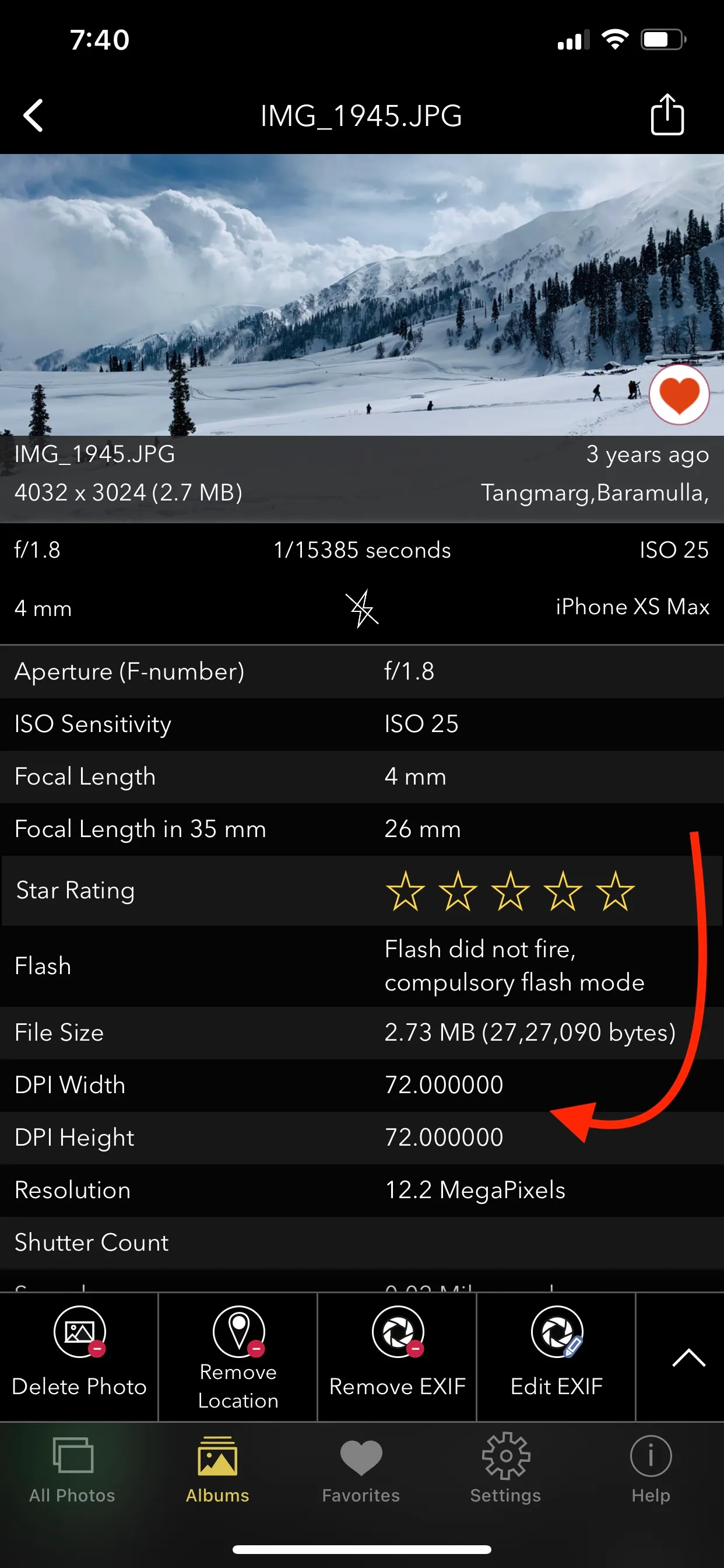
 ▶How to view DPI of a photo on iPhone and iPad
What is DPI?
DPI is dots per inch, which describes resolution of an image usually when printed or scanned. Higher the Dots per inch sharper the image. When you print lower DPI image even on highest quality printer, It doesn’t have enough RAW data to produce a sharp quality image, would not produce a sharp and edges would look fuzzy
Based on DPI of an image, Images can be categorised into different types
Low Resolution image – Images with DPI value less than or equal to 150 DPI. Usually images on web are 72 DPI only. This is one of reason why images from web aren’t usually very sharp after printing.
Medium Resolution image – Images have DPI value between 150 DPI and 300 DPI. This would be good quality to print marketing materials, booklets etc
High Resolution image – Image that have more than 300 DPI or close to 600 DPI are considered to be High resolution image. Its important to note that, most of desktop printer cannot handle that much DPI. So you might want to get printing done by professional printing services.