EXIF Data Remover for iPhone, iPad and Mac
Discover the best metadata remover apps for iPhone, iPad, and Mac. Learn how to easily remove EXIF and other hidden data from your photos to protect your privacy.
By Mohith K MUpdated 5 min read
In today’s digital world, protecting your privacy is more important than ever, especially when sharing photos online. Each picture you take with your iPhone, iPad, or Mac contains hidden information known as EXIF data (Exchangeable Image File Format) or metadata. This data can include sensitive details like the exact location where the photo was taken, the device used, and even the time and date of the capture. To safeguard your privacy, you should remove this metadata before sharing photos. In this blog post, we’ll guide you on how to remove EXIF data from photos on iPhone, iPad, and Mac and recommend some of the best metadata remover apps available.
What Is EXIF Data?
EXIF data is a type of metadata embedded in your photos. It includes information like:
- Camera settings (shutter speed, aperture, ISO).
- Location data (if GPS is enabled).
- Date and time the photo was taken.
- Editing software used on the image.
While this data can be helpful for photographers, it can also expose personal information when sharing photos publicly. Therefore, many people use metadata removers or EXIF data remover apps to delete this data before uploading images to the internet.

Why Should You Remove EXIF and Metadata?
- Protect Your Location: EXIF data can reveal your location. If you post a photo taken at home or a regular spot, anyone can view this information through the metadata.
- Privacy Protection: By removing metadata like location, camera details, and the time of capture, you can stay anonymous and avoid revealing personal details.
- Prevent Data Exploitation: Malicious users can misuse metadata to track your whereabouts or other private information.
EXIF Data and Privacy Concerns: Unmasking the Risks of Sharing Your Photos
How to Remove EXIF Data on iPhone and iPad
Apple makes it easy to control what data is shared in your photos. Here are two ways to remove or manage EXIF data on your iPhone or iPad:
1. Using the Built-In Photos App
- Open the Photos app on your iPhone or iPad.
- Select the photo you want to share.
- Tap the Share button (a box with an arrow pointing up).
- Tap Options at the top of the screen before sharing.
- Under “Include,” toggle Location off. This will remove the location data, though other metadata like camera settings will remain intact.
2. Using a EXIF and Metadata Remover App
To completely remove all EXIF and metadata from your images, consider using third-party apps that specialize in this task. These apps let you delete not just location data but all metadata before sharing your images.
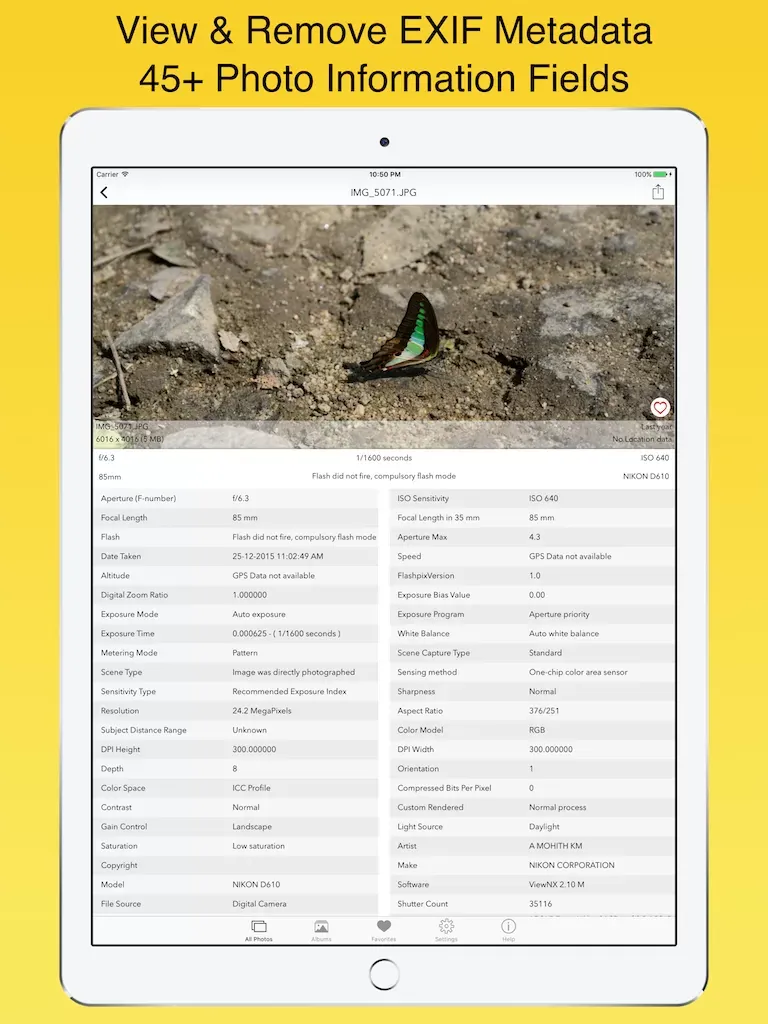
• EXIF Viewer by Fluntro: Our own EXIF Viewer app lets you easily view and remove EXIF data from your photos. It’s a powerful tool to delete all metadata for iPhone and iPad users, ensuring your privacy is protected.
How to View EXIF Data on iPhone
If you want to check what metadata is stored in your photos before removing it, you can use several apps to view EXIF data on iPhone:
• EXIF Viewer by Fluntro: This app is excellent for viewing detailed EXIF and metadata information, like the camera model, date, time, and location. It’s perfect for both casual users and photographers who need to manage their metadata.
How to Remove EXIF Data on Mac
For Mac users, there are multiple ways to remove EXIF data and metadata from photos. Here’s how to do it using built-in tools or third-party apps.
1. Using EXIF Tool on Mac
ExifTool by Phil Harvey – ExifTool is an application to read, write and edit EXIF Metadata. It is platform-independent, and can be downloaded from https://exiftool.org/.
Understanding everything about EXIF in Photos: How to View, Edit and Protect Your Image Metadata
2. Using Third-Party Apps on Mac
For full metadata removal, use one of these EXIF and metadata remover apps for Mac:
- EXIFPurge: This free app helps you remove EXIF metadata from multiple images simultaneously.
- ImageOptim: A great tool for compressing images and stripping them of all metadata, including EXIF data.
How to Check EXIF Data on Mac
To ensure your photos don’t have any sensitive metadata before sharing, you can quickly check the EXIF data on Mac:
- Right-click the image file and select Get Info.
- Scroll down to the More Info section to view all metadata, including camera details, location, and more.
Right click the photo and select Open with Preview app.Click on Tools in the menu bar.Select Show Inspector.Click on Exif tab.This will show the EXIF Metadata of the photo.
Online Tools to Remove Metadata from Photos
If you’re not near your iPhone, iPad, or Mac, you can still remove metadata from your photos using online tools:
- Metapicz.com: This website allows you to upload photos and strip them of EXIF and metadata without downloading any software.
- Exif.tools: Another simple and effective tool to remove metadata from photos online.
Why Use EXIF Viewer by Fluntro?
For those who need a powerful tool to both view EXIF data and remove metadata, EXIF Viewer by Fluntro is highly recommended. Available for both iPhone and iPad, it offers an easy-to-use interface for managing your photos’ metadata and protecting your privacy. Whether you’re a casual user or a professional photographer, this app ensures your images are safe for sharing.
Conclusion
Removing EXIF data and other metadata from your photos is an essential step to protect your privacy online. Whether you’re using an iPhone, iPad, or Mac, there are many methods and apps available to ensure your sensitive information stays private. Whether you’re using the built-in features on Apple devices or a specialized metadata remover app, taking control of your photo data has never been easier.
By following this guide, you can remove metadata from photos, check EXIF data, and share your images securely.
![Photography App - EXIF Viewer by Fluntro for iPhone and iPad [Promo Video]](https://i.ytimg.com/vi/ycz0b0uDn9A/hqdefault.jpg) ▶Photography App - EXIF Viewer by Fluntro for iPhone and iPad [Promo Video]
▶Photography App - EXIF Viewer by Fluntro for iPhone and iPad [Promo Video]
Also check out our other apps
Related guides
EXIF Data in Social Media: What You Need to Know
Updated October 31, 2024
How to Edit or Remove Metadata for Privacy and Security
Updated September 27, 2024
How to Remove Location Data from Photos Before Sharing
Updated September 18, 2024
How to View and Remove EXIF Metadata on iPhone or iPad
Updated March 25, 2022