
Free · No upload · No account
HEIC to JPG Converter
Turn iPhone HEIC photos into universally-supported JPG — on your own device. Everything runs in your browser: your photo is never uploaded. Hidden metadata (including GPS) is stripped for privacy. [ + ]
Drop HEIC photos to convert to JPG
Converted on your device. Safari converts natively; other browsers load a 1.4 MB decoder once. Nothing is uploaded.
Photos are read locally on your device — this page makes no network request with your file.
For iPhone, iPad & Mac · Featured by Apple
The full EXIF toolkit lives on your iPhone
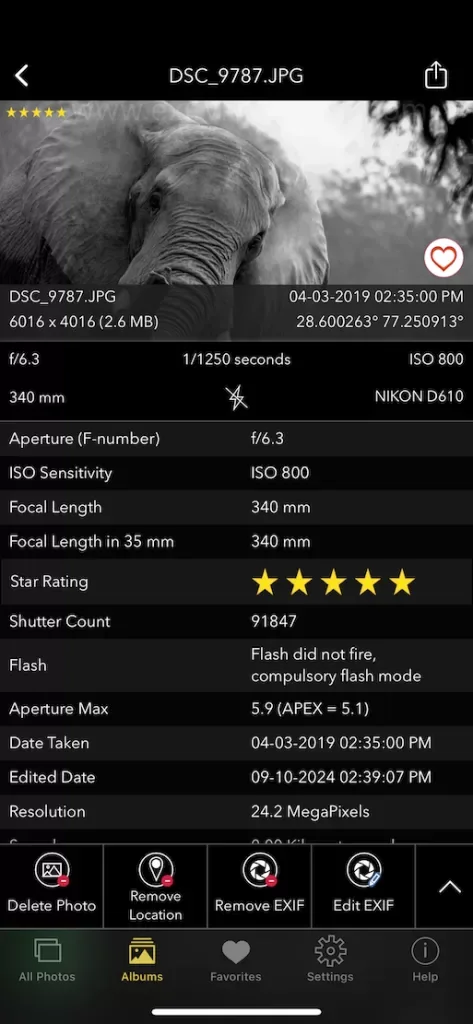
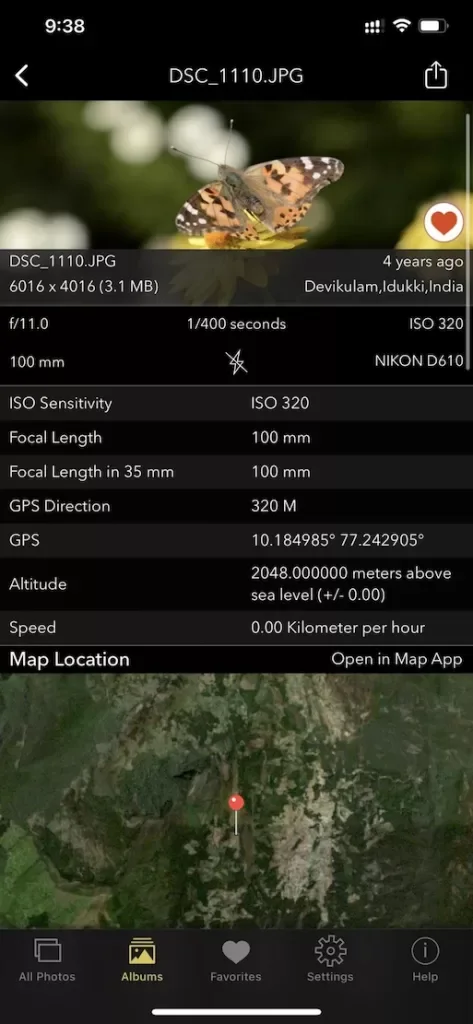
This page shows what’s inside a photo. EXIF Viewer by Fluntro goes further — view, edit, and remove metadata (including GPS geotags) right in your photo library, bulk-edit dates and locations, and share any photo with or without its EXIF. Buy once, use on iPhone, iPad and Mac. No subscription. Your photos never leave your device there either.
4.7· 1.9K ratingsFeatured by Apple
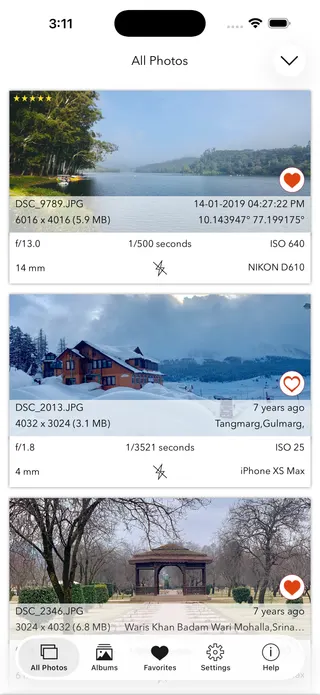
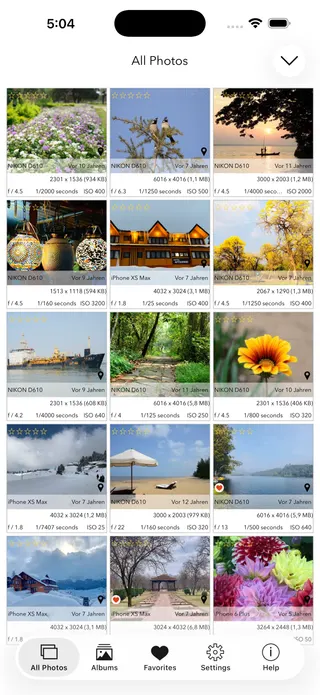
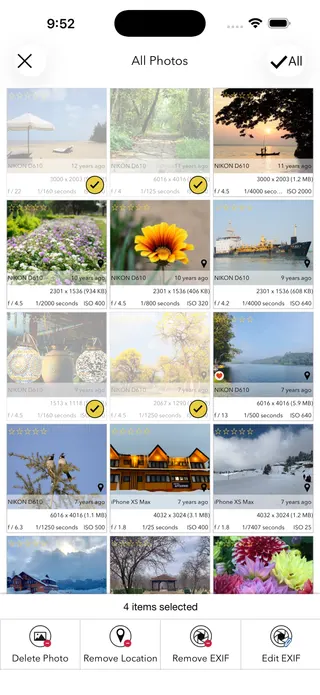
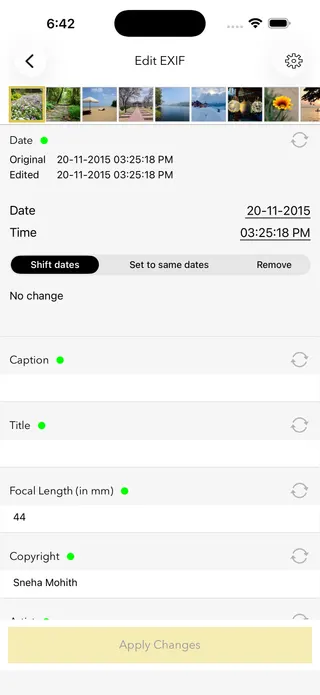
HEIC to JPG Converter — frequently asked questions
Short answers; the app’s guides go deeper.
How do I convert HEIC to JPG?
Drop a HEIC photo onto this page and it is converted to JPG right in your browser, on your own device. Click Download JPG to save the result. Nothing is uploaded, there is no account, and it is free.
Is my photo uploaded to a server?
No. Unlike most HEIC converters, this one runs entirely in your browser. Your photo is never sent to a server, stored, or shared. The converter component loads once from this website, and after that the conversion itself happens completely on your device.
What is a HEIC file?
HEIC (High Efficiency Image Container) is the format iPhones and iPads use by default since iOS 11. It stores photos at roughly half the file size of JPEG at similar quality, but many websites, Windows apps, and older software cannot open it — which is why converting to JPG is often necessary.
Does converting HEIC to JPG lose quality?
A small amount, in theory. JPEG is a lossy format, so the conversion re-encodes the image — this tool uses a high quality setting (92%) at the photo's full resolution, which is visually indistinguishable from the original for normal use. The pixel dimensions are unchanged.
What happens to the photo's metadata and GPS location?
It is removed. The conversion produces a clean JPG without the hidden metadata — including the GPS location — that the original HEIC carried. That is deliberate: it protects your privacy when you share the converted file. If you need to inspect the original's metadata first, use the EXIF viewer on this site.
Why can't Windows or my website open HEIC files?
HEIC uses HEVC compression, which requires licensed codecs. Windows often needs a paid extension to open it, and many websites, forms, and older apps simply do not support it. Converting to JPG — the most universally supported image format — solves the compatibility problem.
How do I stop my iPhone from taking HEIC photos?
Open Settings, then Camera, then Formats, and choose Most Compatible. New photos will be saved as JPEG instead of HEIC. Keep in mind JPEG files are roughly twice the size, so High Efficiency is worth keeping if storage matters.
Does this work on Windows, Mac, Android, and iPhone?
Yes. It runs in any modern browser on any system — including Windows, where HEIC support is otherwise missing. On Safari the browser's built-in HEIC support is used, so conversion starts instantly; other browsers load the converter component once, then work the same way.
Can I convert other formats like PNG or WebP to JPG here?
Yes. If you drop a PNG, WebP, or other image your browser can display, it is converted to JPG the same way — on your device, with metadata removed.
Is this HEIC converter free?
Yes, completely free, with no account, no watermark, and no upload. For viewing, editing, and removing photo metadata on iPhone and iPad, the EXIF Viewer by Fluntro app is a one-time purchase.
Private by design
This tool was built so your photos never have to leave your device. Here’s exactly what that means for your data.
Nothing is uploaded
Your photo is opened and read entirely inside your own browser. It is never sent to a server, stored, or shared — once this page has loaded, it even works with your connection switched off.
No account, no tracking
There is no sign-up and no advertising cookies. The only thing saved on your device is your light or dark theme preference. Page views are counted without cookies or identifiers.
Your location stays yours
If a photo contains GPS coordinates, they are shown only to you, on your screen. We never see them, and any map link opens only if you choose to click it.
Nothing to collect
Because no personal data leaves your device, there is nothing for us to collect, log, or process. The full details are in our Privacy Policy.
Metadata is read from your file exactly as it was saved and is shown “as is.” It can be missing, altered, or inaccurate — for example, timestamps depend on the camera's clock and GPS can be approximate — so please don't rely on it as proof for legal, forensic, insurance, or safety decisions. This tool is provided free and without warranty; see our See our Terms & Disclaimer and Privacy Policy.
More free photo tools
All 20 run in your browser — nothing is ever uploaded.
Inspect & verify
- EXIF Metadata ViewerSee every tag hidden in a photo
- Photo Privacy CheckerWhat does your photo reveal about you?
- Is This Photo Edited?Editing traces & AI markers
- What Camera Took This Photo?Identify the camera, phone & lens
- When Was This Photo Taken?Find the exact date & time
- Photo Location ViewerSee where a photo was taken
- Camera Shutter CountCheck a camera’s shutter actuations
Edit & clean
Image utilities
Calculators
Convert
- HEIC to JPG ConverterConvert iPhone photos — on your device · you are here
- WebP to JPG ConverterMake WebP images universally compatible