How to Find One Photo in a 40,000-Photo iPhone Library
How to find one photo in a library of tens of thousands: the search, filters and tools that make a huge iPhone library navigable.
By Sneha MohithUpdated 2 min read
Navigating through a library of 40,000 photos can be overwhelming and time-consuming. Utilizing advance filters, such as those available in the Photos Search by Fluntro app, streamlines the search process, enabling you to efficiently refine your results and locate specific photos without the hassle of manual scrolling.
How to Search the Text in Photos on your iPhone/iPad?
-
Download and Open the Photos Search by Fluntro app on your iOS device.
-
Tap on the Search bar located at the top of the screen.
-
Enter your search using text keywords.
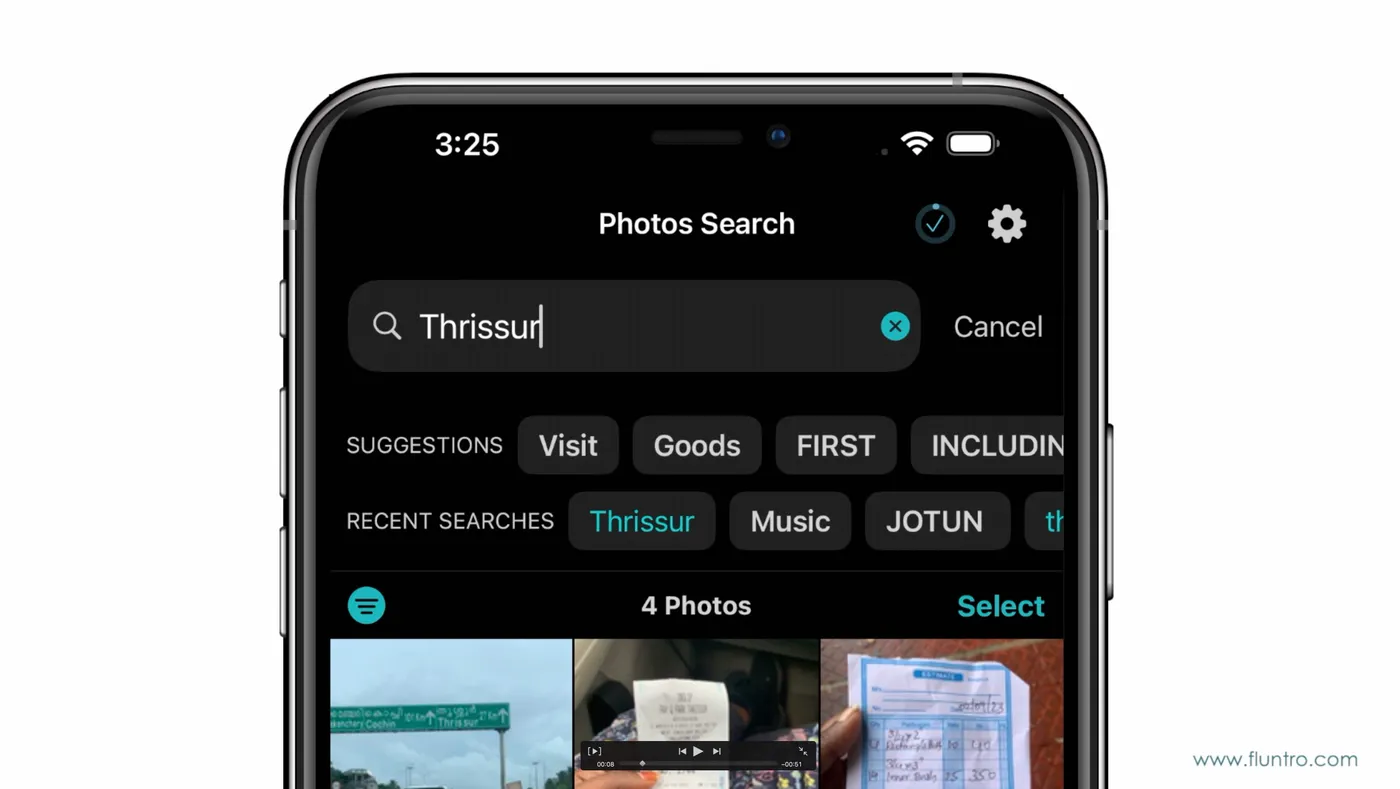
 ▶This App Finds all of your Photos
- As you type, the app will present suggestions and auto-complete options to help refine your search.
- Tap on the relevant suggestions or recent searches tags to make quick search.
- The app will then display a collection of photos that match your search criteria.
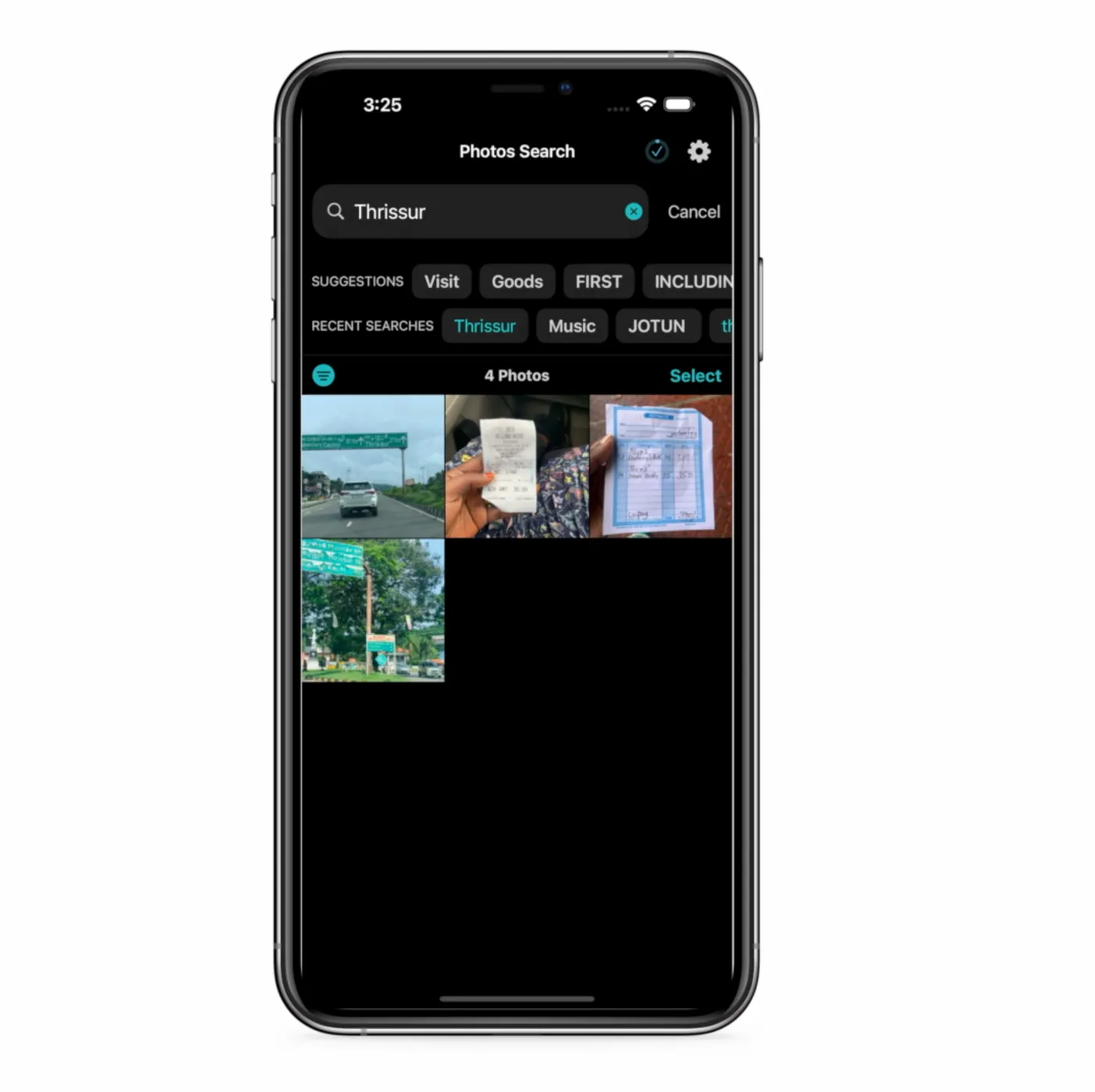
- Instant Results: Experience lightning-fast search results with PhotoSearch. Stop endless scrolling and enjoy an efficient browsing experience, allowing you to find the perfect photo in no time.
- Text Highlighter: Helps to find the text quickly from the photos.
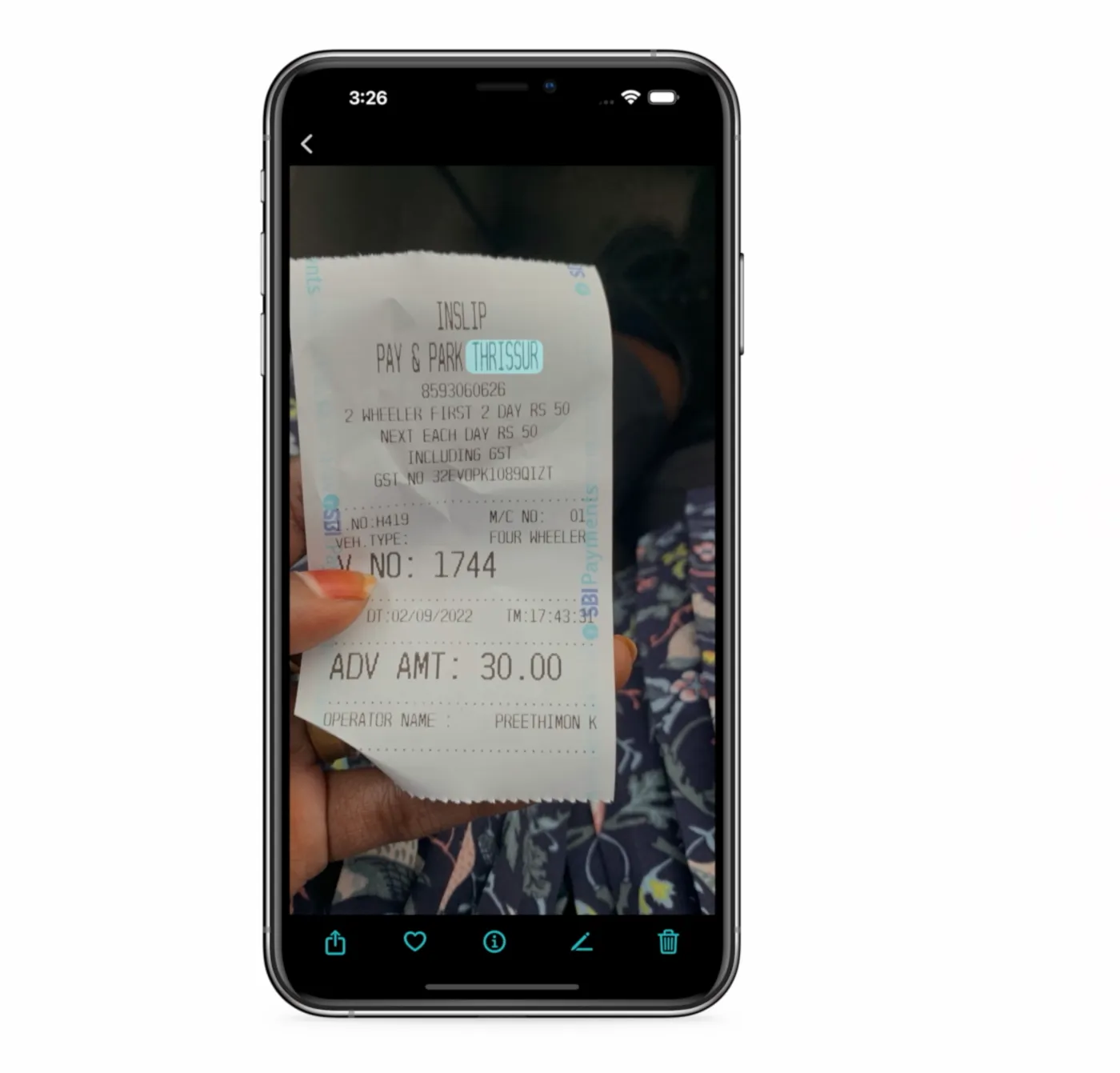

 ▶Find Text in Image with the iPhone App
For example, if you enter “Bill” the search results will show photos related to that from your iPhone or iPad images. By using filters, the app will filter the photos according to a specific date, camera source, lens make, and more.
Advanced Filters
Fine-tune your search with advanced filtering options. Narrow down your results by resolution, camera source, camera lens make and more, ensuring that you discover the precise image you’re envisioning.
- Access Filter and Choose a Filter: Tap on the Filters icon, and you’ll be presented with a selection of filters. Each filter helps users to find the result they are looking for in an image.
- Apply the Filter: Once you’re satisfied with the filter, tap “Done” to save the changes.
- Save or Share: After applying the filter, share it directly from the Photos Search app.

 ▶Search for Photos by Camera Model
Secure and Private:
Photos are NEVER uploaded to any of our servers. We value your privacy. Photo Search works locally on your device, ensuring that your photos and extracted text remain private and secure.
Note: The process of Indexing photos may take time. As a result, photos associated with a particular keyword will only appear in search results once their indexing is complete.
Thankyou.