How to Lock and Unlock Hidden Photos on iPhone?
Learn how to lock and unlock hidden photos on iPhone with Face ID, Touch ID, or passcode. Secure your private photos effortlessly with this step-by-step guide.
By Mohith K MUpdated 3 min read
Do you want to keep certain photos private on your iPhone? Apple makes it easy to hide and protect your photos from prying eyes with the Hidden Album feature, now enhanced with a lock for added privacy. In this blog, we’ll guide you step-by-step on how to lock and unlock your hidden photos on iPhone. Let’s get started!
Why Lock Hidden Photos?
Privacy matters! Whether it’s personal memories or sensitive information, locking your hidden photos ensures only you can access them using Face ID, Touch ID, or your passcode.
How to Lock Hidden Photos on iPhone
Follow these steps to secure your hidden photos:
1. Enable Face ID/Touch ID or Passcode Lock
- Go to Settings > Face ID & Passcode (or Touch ID & Passcode on older models).
- Ensure Face ID/Touch ID is set up or a passcode is enabled. This will be required to lock your Hidden Album.
2. Turn On the Hidden Album
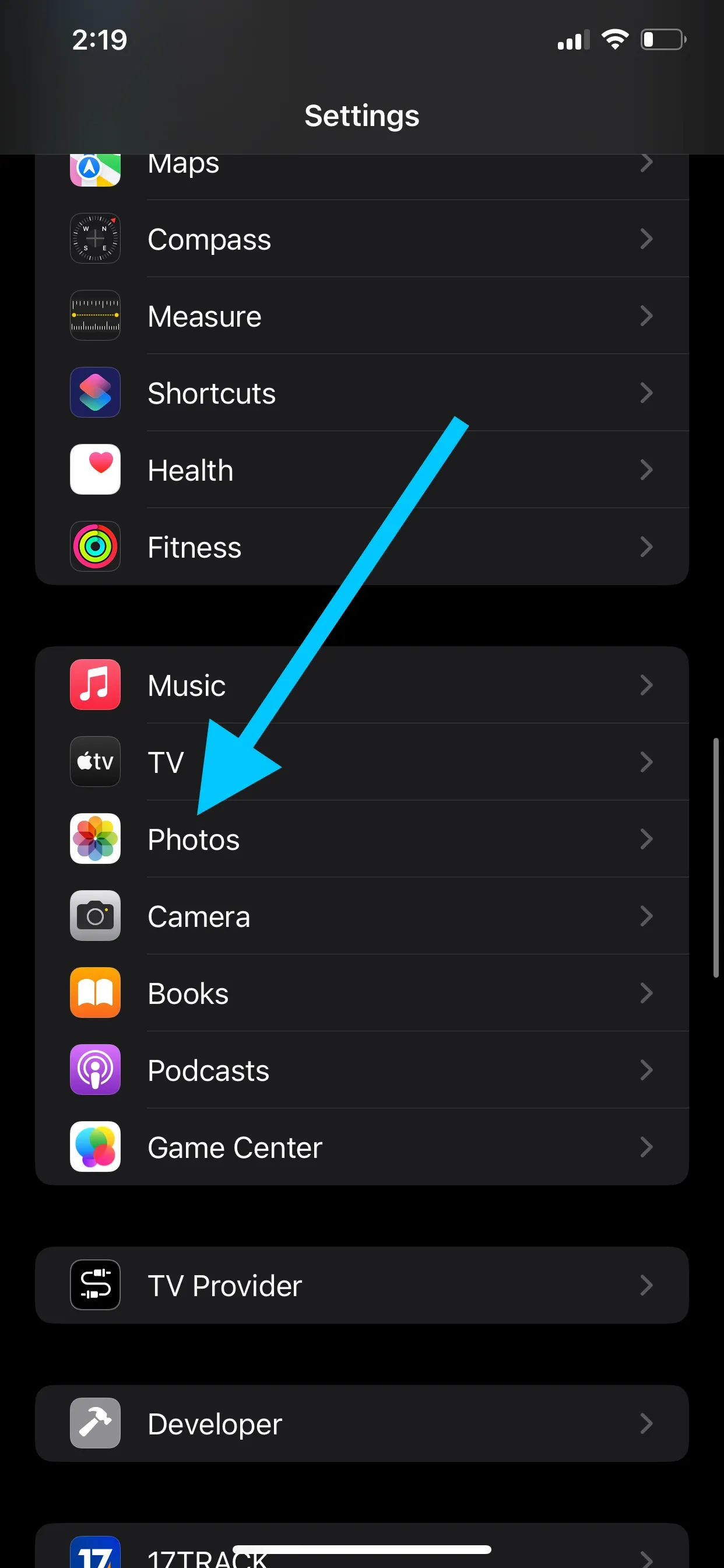
- Open Settings.
- Scroll down to Photos.
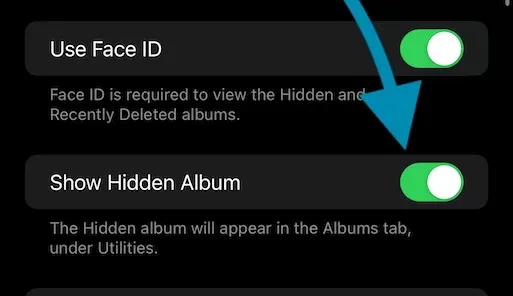
- Toggle on Show Hidden Album if it’s off.
3. Lock the Hidden Album
- With iOS 16 or later, the Hidden Album is automatically locked when you have Face ID/Touch ID or a passcode enabled.
- The Hidden Album will appear in the Photos app under the Utilities section but will require authentication to access.
How to Add Photos to the Hidden Album
- Open the Photos App
- Navigate to the photo(s) you want to hide.
- Hide the Photo
- Tap the Share icon (a square with an arrow).
- Scroll down and select Hide.
- Confirm by tapping Hide Photo.
The selected photo(s) will now move to the Hidden Album.
How to Unlock Hidden Photos on iPhone
Accessing your locked Hidden Album is straightforward:
- Open the Photos App
- Scroll to the Utilities section.
- Select Hidden Album
- Tap on the Hidden Album.
- Authenticate using Face ID, Touch ID, or your passcode.
Once unlocked, you can view, edit, or share your photos like any other album.
FAQs
1. Can I disable the Hidden Album?
Yes, go to Settings > Photos and toggle off Show Hidden Album. The album will no longer be visible in the Photos app, but hidden photos remain stored securely.
2. What happens if I forget my passcode?
You’ll need to reset your iPhone passcode to regain access. Ensure you have a backup to avoid losing data.
3. Are hidden photos stored in iCloud?
Yes, if iCloud Photos is enabled, your hidden photos are stored securely in iCloud and synced across devices.
Tips for Managing Hidden Photos
- Organize Regularly: Periodically review your Hidden Album and delete any unnecessary photos.
- Backup Safely: Use iCloud or an external storage solution to back up your photos, ensuring no data loss.
- Stay Updated: Always keep your iPhone software updated to benefit from the latest privacy features.
Conclusion
Locking and unlocking hidden photos on your iPhone is a simple yet powerful way to maintain your privacy. With Apple’s built-in tools like Face ID, Touch ID, and passcodes, your private photos stay protected from unauthorized access.
If you found this guide helpful, consider sharing it with others who value their privacy. For more iPhone tips and tricks, explore our blog today!
By following these steps, you’ll confidently manage your hidden photos while boosting your iPhone privacy. Start locking your private photos today!
Hidden Photos not showing in Albums – How to fix it?
Fluntro’s Apps: Enhancing Your iPhone Experience
1. EXIF Viewer by Fluntro
Related guides
Hidden Photos not showing in Albums – How to fix it?
Updated January 3, 2025
How to Edit EXIF Metadata?: Privacy, Corrections, and more..
Updated November 5, 2024
Managing Photo Metadata for Privacy and Control
Updated October 19, 2024
EXIF Metadata and Image Copyright: Protecting Your Work
Updated September 30, 2024