iPhone Photo Camera Timer – Benefits and How to use them?
Discover the benefits of using the iPhone camera timer. Learn how to capture perfect group photos, steady shots, and creative selfies.
By Mohith K MUpdated 5 min read
The iPhone camera has evolved to offer tools that make capturing high-quality photos easier than ever. One powerful yet often overlooked feature is the iPhone Photo Camera Timer. This handy timer helps you take better group photos, steady shots, and even creative selfies. In this guide, we’ll explore the benefits of using the iPhone camera timer and walk through a step-by-step guide on how to set it up.
What is the iPhone Photo Camera Timer?
The iPhone Camera Timer is a built-in feature that allows you to delay the camera’s shutter for a few seconds before it takes a photo. This delay is helpful for various situations, such as taking group shots, capturing action photos, or creating smooth and steady images without any blur caused by shaky hands.
Benefits of Using the iPhone Camera Timer
1. Perfect Group Photos
The timer allows you to set up the iPhone on a stable surface, join your friends or family, and take the photo without anyone having to be left out. No more missing out because you’re holding the camera – simply activate the timer and everyone gets in the shot!
2. Eliminate Shaky Photos
Using the timer reduces the risk of blurriness from camera shake. When you tap the shutter button, slight movements can blur the photo, especially in low-light conditions. The timer gives the phone a moment to stabilize for clearer images.
3. Ideal for Low-Light and Night Shots
At night or in low light, even small shakes can create unwanted motion blur. By using the timer, your iPhone has time to stabilize, capturing a clear, sharp image.
4. Hands-Free Selfies and Portraits
With the camera timer, you can position the iPhone at a distance for full-body shots or creative selfies, without needing to hold the phone in your hand. This gives you the flexibility to try different poses or backgrounds.
5. Creative Photography Techniques
• The timer opens the door for creative techniques such as light trails, jump shots, and action poses. With the extra seconds provided by the timer, you can set up your shot and move into position, ensuring that you capture unique and dynamic images.
How to Use the iPhone Camera Timer: Step-by-Step Guide
Using the iPhone Camera Timer is simple, and here’s how you can set it up in seconds:
1. Open the Camera App
First, open the Camera app on your iPhone. You’ll need to be in Photo mode to access the timer settings.
2. Find the Timer Icon
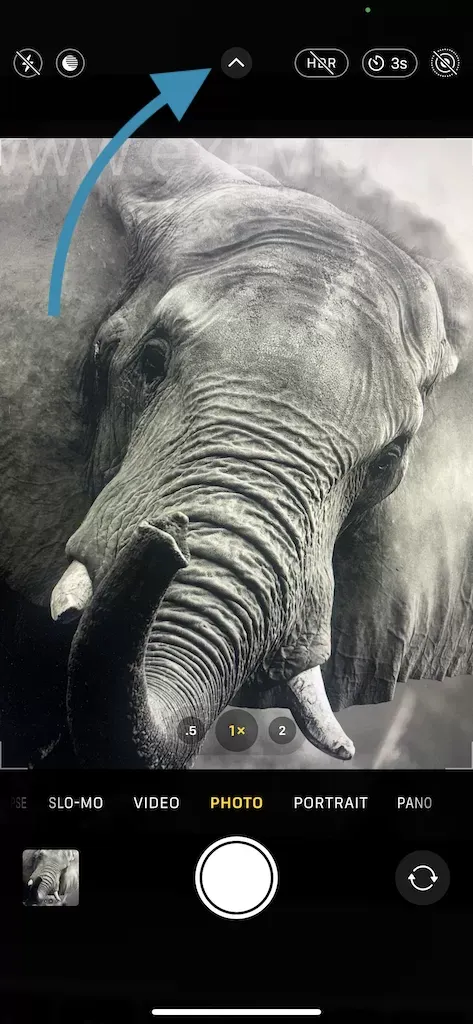
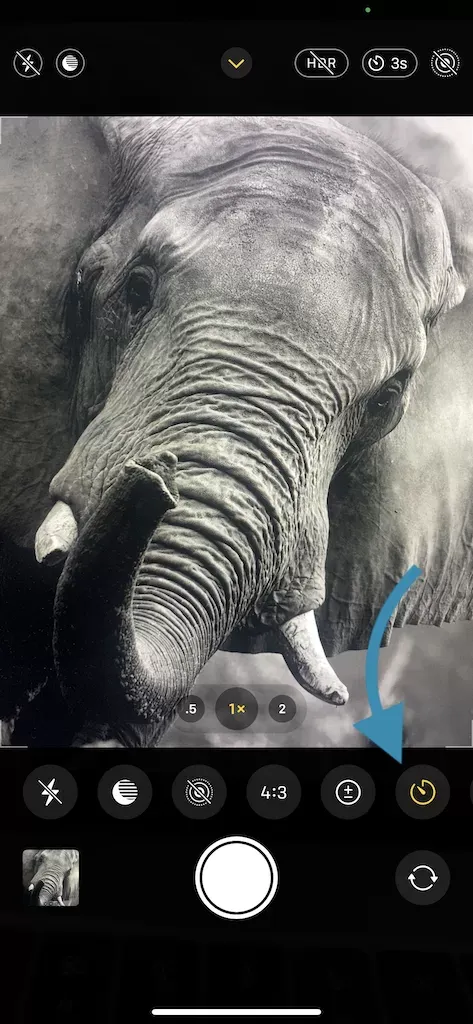
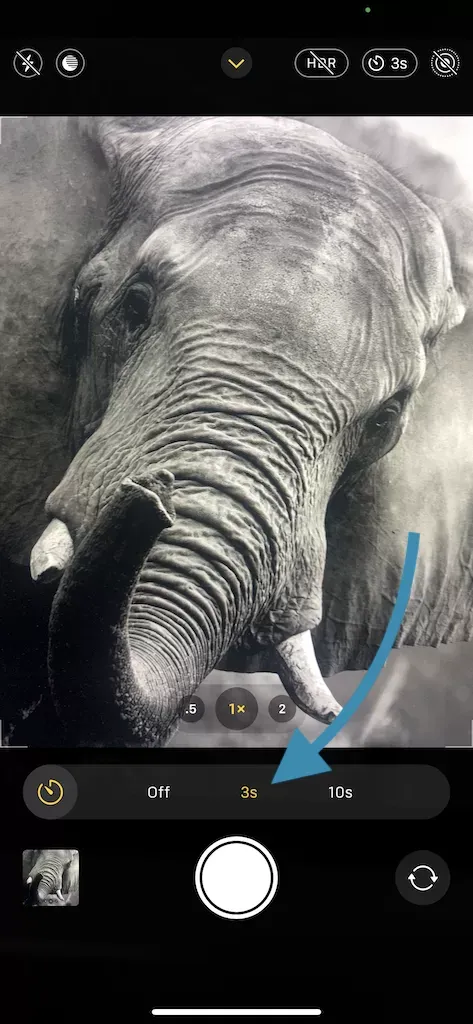
In the top menu of the Camera app, you’ll see a timer icon (it looks like a clock). Tap on it to view the timer options.
3. Select Your Timer Duration
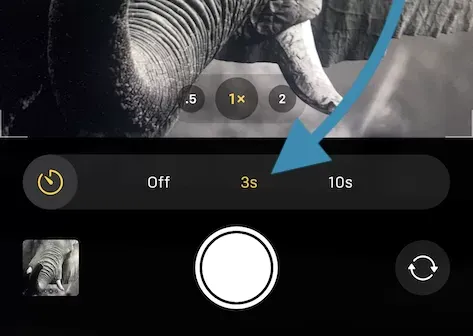
After tapping the timer icon, you can choose between a 3-second or a 10-second delay. The 3-second timer is ideal for quick setups, while the 10-second timer allows you more time to get into position.
4. Set Up Your Shot
Position your iPhone on a tripod, stable surface, or simply prop it up. Ensure everyone is in the frame or that you have the right angle for your solo shot.
5. Press the Shutter Button
Once you’re ready, tap the shutter button. The countdown will begin, giving you a few seconds to get into position. A countdown flash will appear, helping you know when the photo is about to be taken.
6. Review Your Photo
After the photo is taken, you can review it and make adjustments if needed. Repeat the process until you capture the perfect shot!
Tips for Getting the Most Out of the iPhone Camera Timer
- Use a Tripod for Stability: For professional-quality shots, using a tripod is a great idea. This ensures your phone remains steady and at the perfect height.
- Try Different Angles: Experiment with various angles to add variety to your photos. The timer allows you time to reposition between shots.
- Use Live Photos for Motion: Combine the timer with the Live Photo feature for action shots, allowing you to capture small movements within the frame.
- Avoid Sunlight Glare: Ensure your iPhone is positioned away from direct sunlight, as glare can affect photo quality.
Common Questions about iPhone Camera Timer
Q: Can I use the camera timer on older iPhone models?
Yes, the camera timer is available on most iPhone models with the iOS Camera app. However, newer models tend to have more advanced stabilization for even clearer photos.
Q: How do I turn off the timer?
Simply tap the timer icon and select “Off” to disable it. This will return the camera to instant shutter mode.
Q: Can I use the timer with the front camera?
Absolutely! The iPhone timer works with both front and rear cameras, making it a great tool for selfies, solo photos, and more.
Q: Are there third-party apps with advanced timer features?
Yes, while the built-in timer is convenient, you can explore apps with custom timer options if you need specific features, like interval shooting.
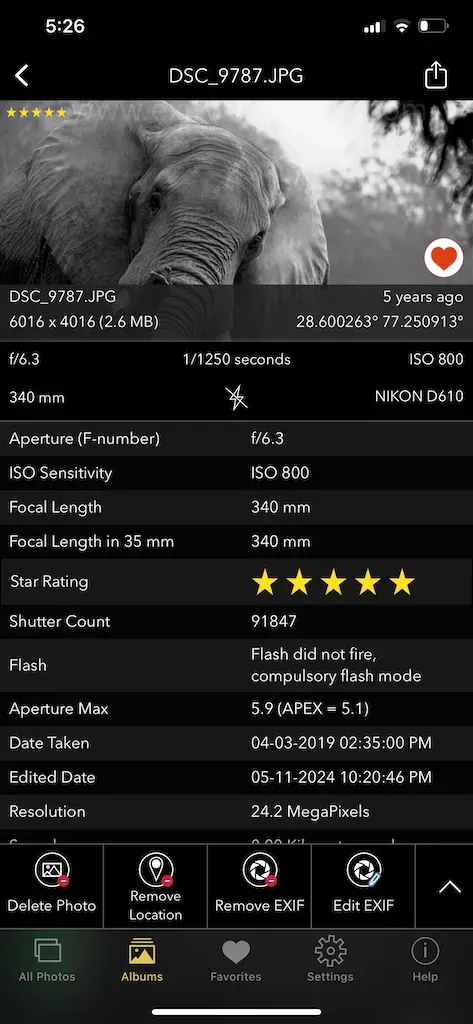
To improve your Photography, Go Manual mode, using EXIF Metadata to learn settings
Final Thoughts
The iPhone Camera Timer is a small but mighty feature that makes taking photos easier and more enjoyable. Whether you’re snapping a quick group photo, getting a steady shot in low light, or experimenting with creative photography, the timer gives you the flexibility to capture moments with ease. So next time you’re setting up a photo, try using the iPhone camera timer for flawless shots every time.
By mastering this feature, you’ll be ready to capture amazing images like a pro – all while keeping your hands free. Try it out and see how the timer can transform your iPhone photography!
With these tips and insights, you’ll be well on your way to mastering the iPhone Camera Timer. Don’t forget to experiment with settings and positions to find what works best for your needs.
10 Game-Changing iPhone Photography Hacks for All Skill Levels
Related guides
Black Screen on iPhone Camera: Every Fix That Works
Updated October 20, 2025
How to Use ProRAW Effectively on iPhone and iOS 18
Updated January 1, 2025
iPhone Camera Features: Capture Stunning Photos Like a Pro
Updated December 27, 2024
Best Quick iPhone Camera Settings for Northern Lights
Updated December 15, 2024