Photos Information iPhone and iPad – How to find them?
How to find photo information on iPhone and iPad - date, time, location and camera settings - using the Photos app, Files app or EXIF Viewer.
By Mohith K MUpdated 3 min read
Do you ever wonder how to find the details of the photos you take with your iPhone or iPad? Every photo you snap contains hidden information that can reveal details like the date it was taken, the camera settings used, and even the location where it was captured. This hidden data is known as metadata, and finding it can be super useful!
In this blog post, we will guide you step-by-step on how to view photo information on your iPhone and iPad, covering different methods, tools, and tips. Let’s dive in!
What is Metadata in Photos?
Before we start, let’s quickly understand what metadata is. Metadata is like a digital fingerprint for your photos. It includes technical details such as:
- Date and time when the photo was taken
- Location (if location services were enabled)
- Camera settings like ISO, shutter speed, and aperture
- File format (JPEG, HEIC, etc.)
This data is usually stored in a format called EXIF (Exchangeable Image File Format). You can use this metadata to better manage your photos or even troubleshoot issues like blurry images.
Why Should You Check Photo Information?
There are many reasons why checking photo information can be useful:
- Track when and where the photo was taken – Perfect for memories or when organizing your albums.
- Identify camera settings – Great for photography enthusiasts who want to learn from the settings used in a specific shot.
- Manage storage – Some file formats take more space than others, and finding this info can help you save space.
- Privacy concerns – If you’re sharing photos online, checking and removing metadata can protect your privacy.
Now, let’s explore how to find this information on your iPhone and iPad.
Method 1: Using the Photos App (iOS 15 and Later)
Apple has made it super easy to check photo information directly in the built-in Photos app.
Here’s how you can do it:
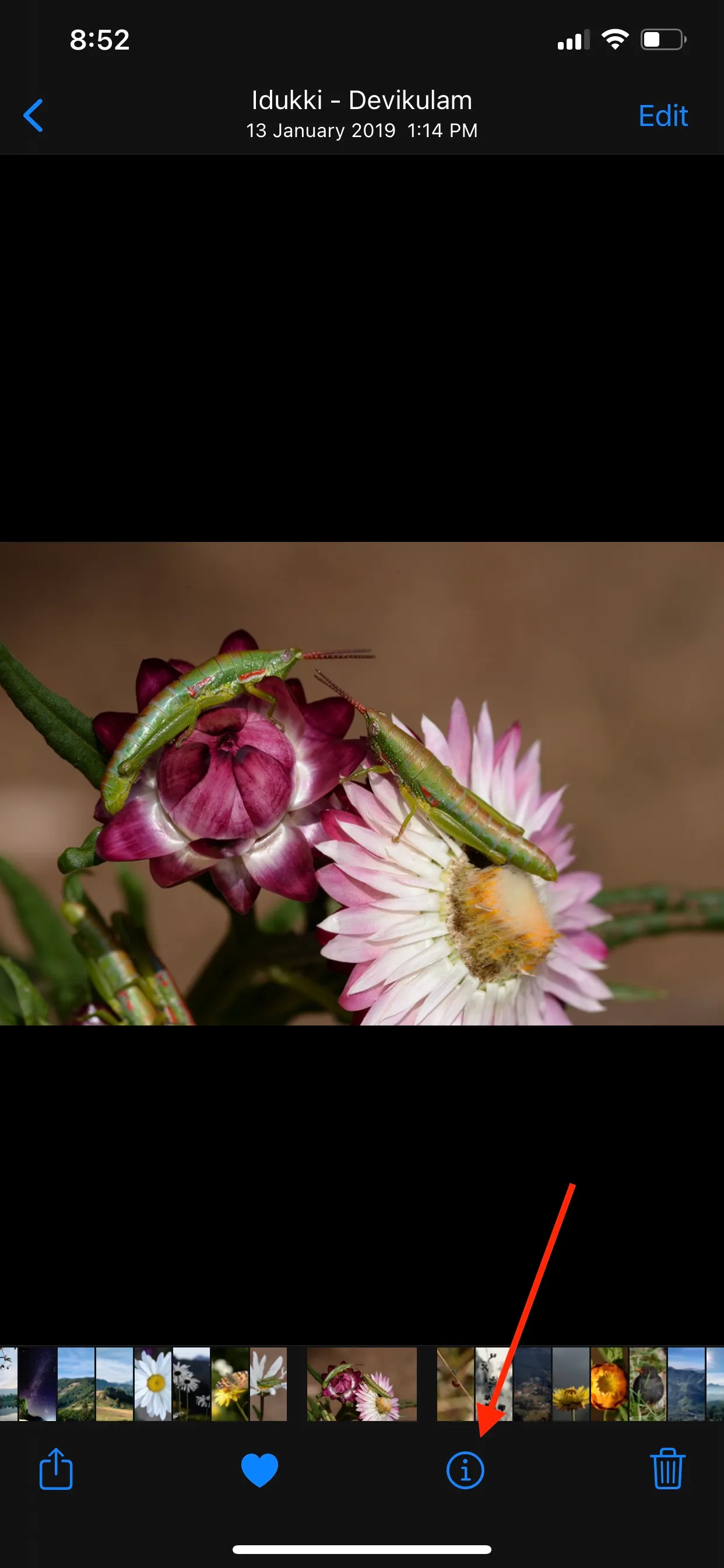
- Open the Photos App on your iPhone or iPad.
- Find the photo you want to check and tap on it to open it.
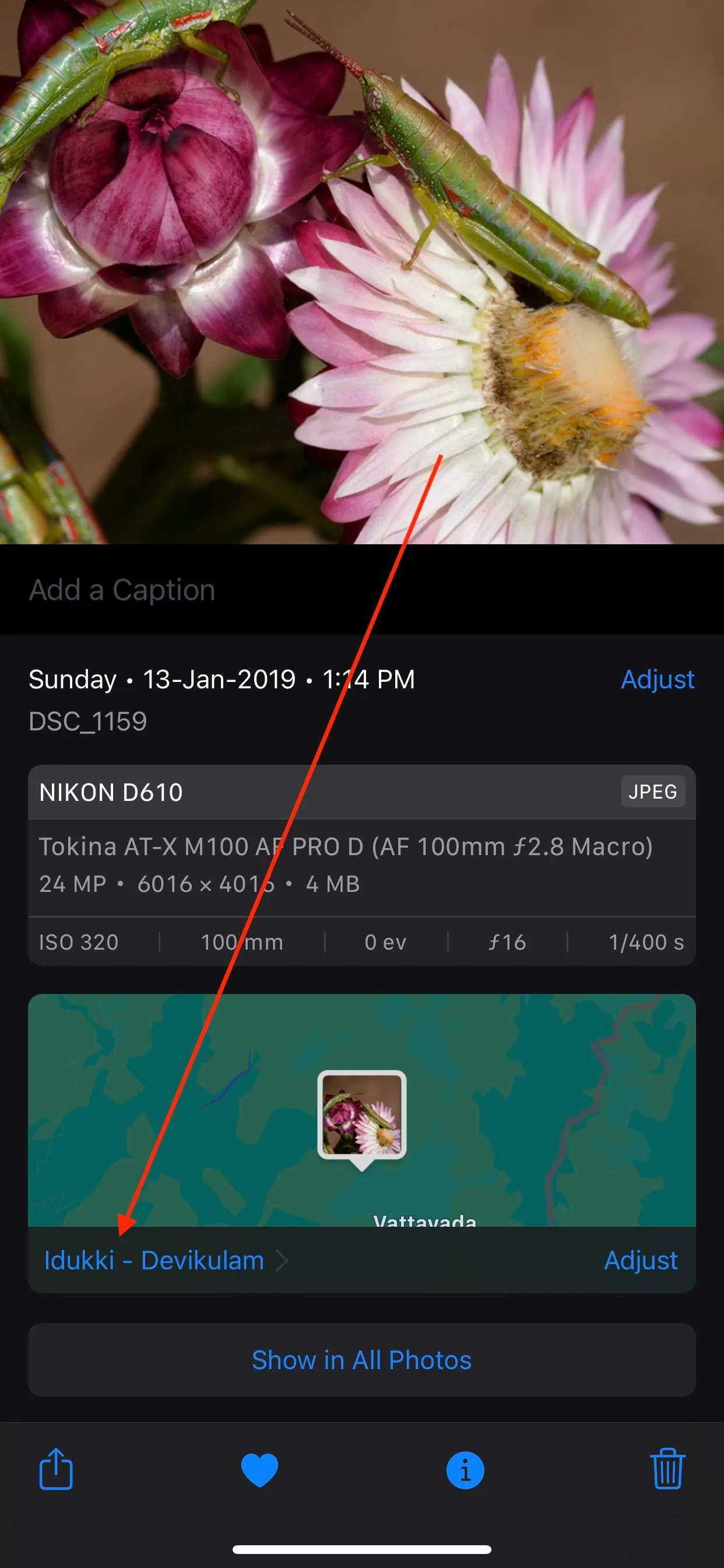
- Swipe up on the photo, or tap the small “i” icon (information icon) at the bottom of the screen.
- You will now see the photo details, including the date, time, location, camera model, and more.
- Your photo has location data, a small map will also appear showing where the picture was taken.
How to Edit Photo Information in the Photos App
You can even change some information in the Photos app:
- Change the Date and Time: Tap on the date or time in the info screen and adjust it as needed.
- Add or Remove Location: If you want to add a location, tap on “Add a Location.” If you want to remove the location, tap “Adjust” and select “No Location.”
This method works great for quickly viewing and managing basic photo details.
Method 2: Using EXIF Viewer by Fluntro (Advanced)
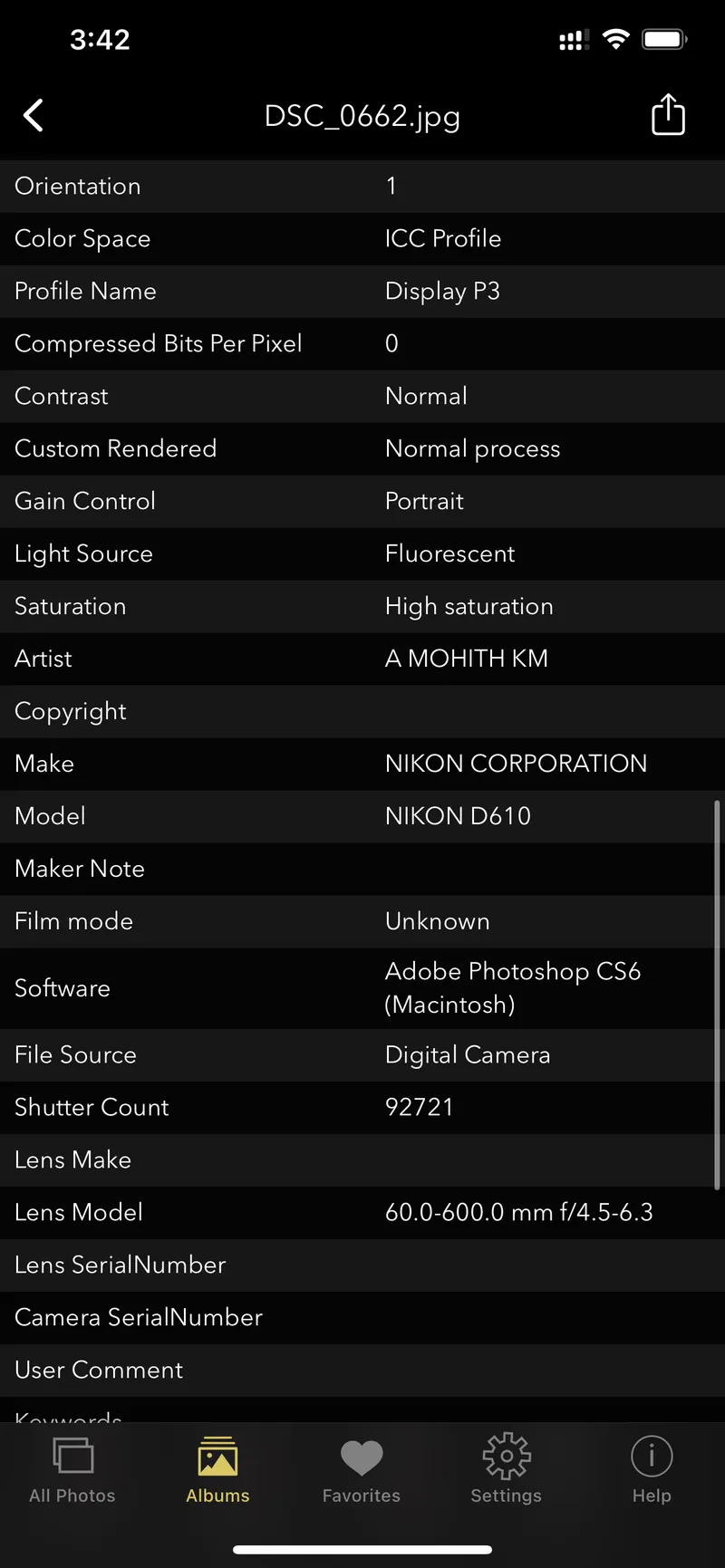
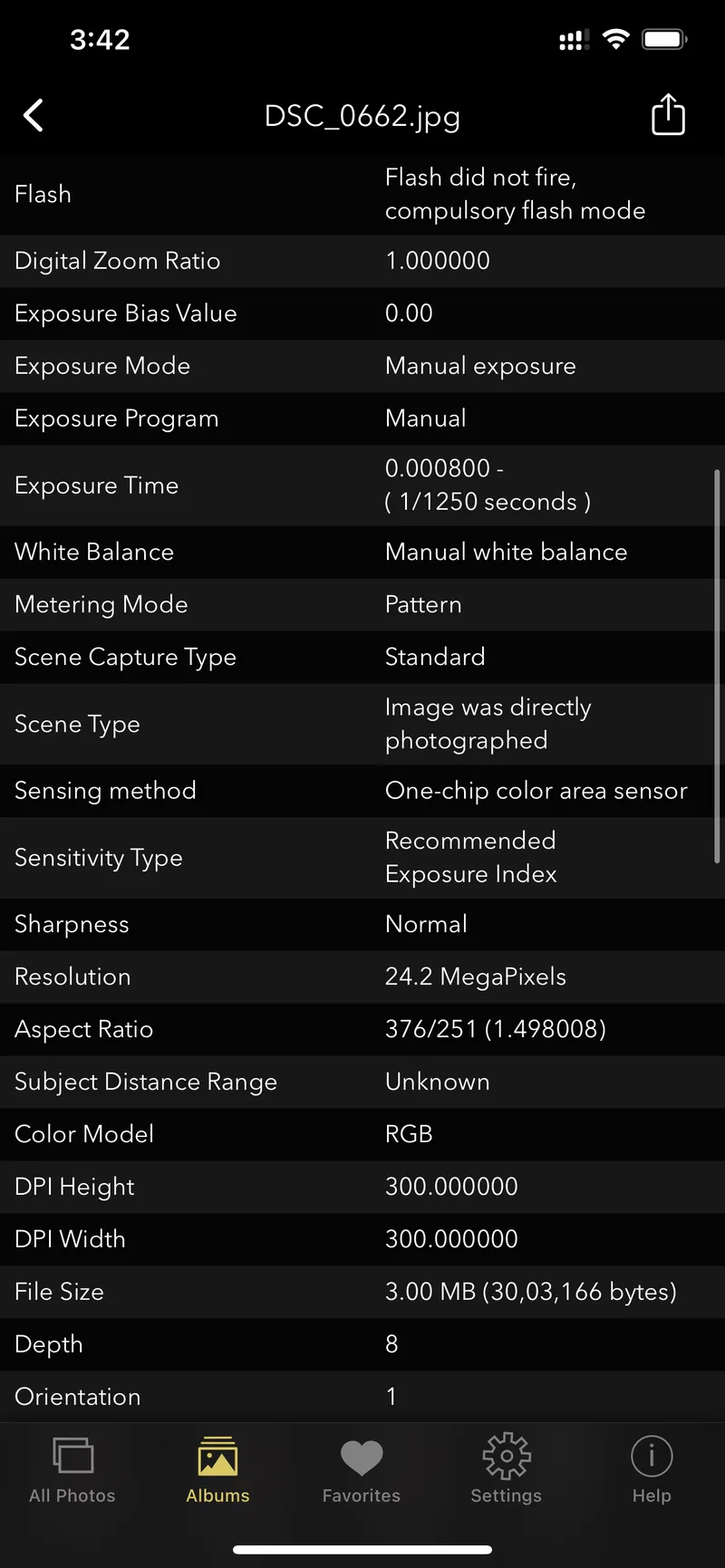
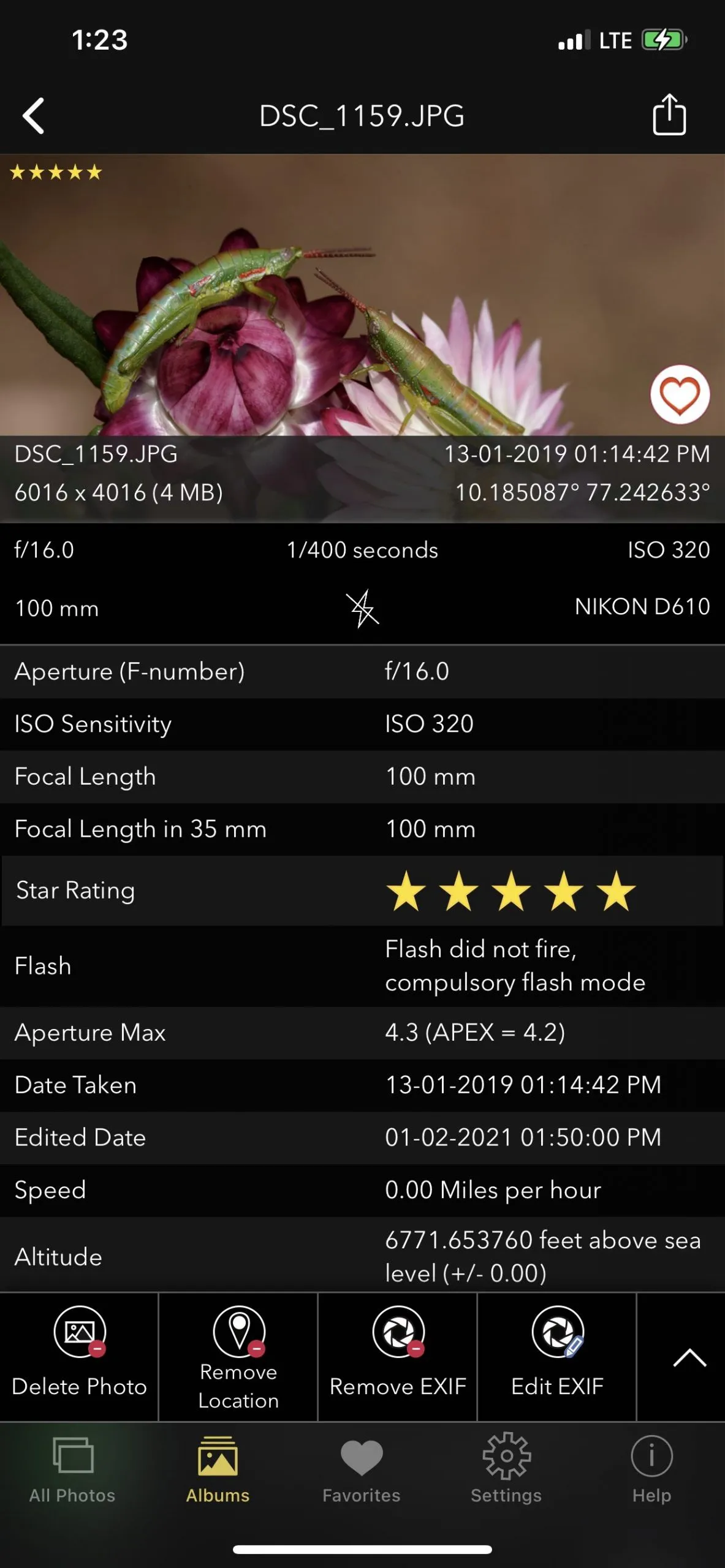
If you want more advanced photo information, including detailed EXIF data like ISO, shutter speed, and exposure, you can any EXIF Apps apps like our own EXIF Viewer by Fluntro.
Here’s how to use EXIF Viewer to get the most comprehensive details:
- Download EXIF Viewer by Fluntro from the App Store here.
- Open the app and give it permission to access your photos.
- Choose the photo you want to analyze.
- You will now see detailed EXIF data, including camera settings, location, and much more.
This app is especially useful if you are a photographer or someone who needs to dig deep into the technical aspects of your photos.