How to Find Photo Details?
How to find a photo's details - EXIF, metadata and hidden fields - on iPhone, Android, Windows and Mac, and how to edit or remove them.
By Mohith K MUpdated 4 min read
When you take photos with your smartphone or camera, every image carries hidden information known as metadata. This includes details like the date, time, location, camera settings, and even the device you used. If you’re curious about the specifics of a photo, you’ll want to know how to find these details. In this blog, we’ll guide you through easy ways to uncover the metadata, including how to check EXIF data, view hidden information, and more.
What is Photo Metadata?
Metadata is data about data. In photography, the most common type of metadata is EXIF (Exchangeable Image File Format) data. This information can tell you a lot about your picture, including:
• Camera settings (ISO, shutter speed, aperture)
• Lens details
• Geolocation (where the photo was taken)
• Date and time
• File format and size
Knowing how to find these details can be especially useful for photographers, editors, or anyone looking to organize or share their photos.
How to Find Photo Details on iPhone and iPad
For iPhone or iPad users, finding photo details is simple:
-
Open the Photos app.
-
Choose the picture you want to inspect.
-
Swipe up on the image or tap the “i” icon at the bottom. This will show basic details like the date, location, and time.
-
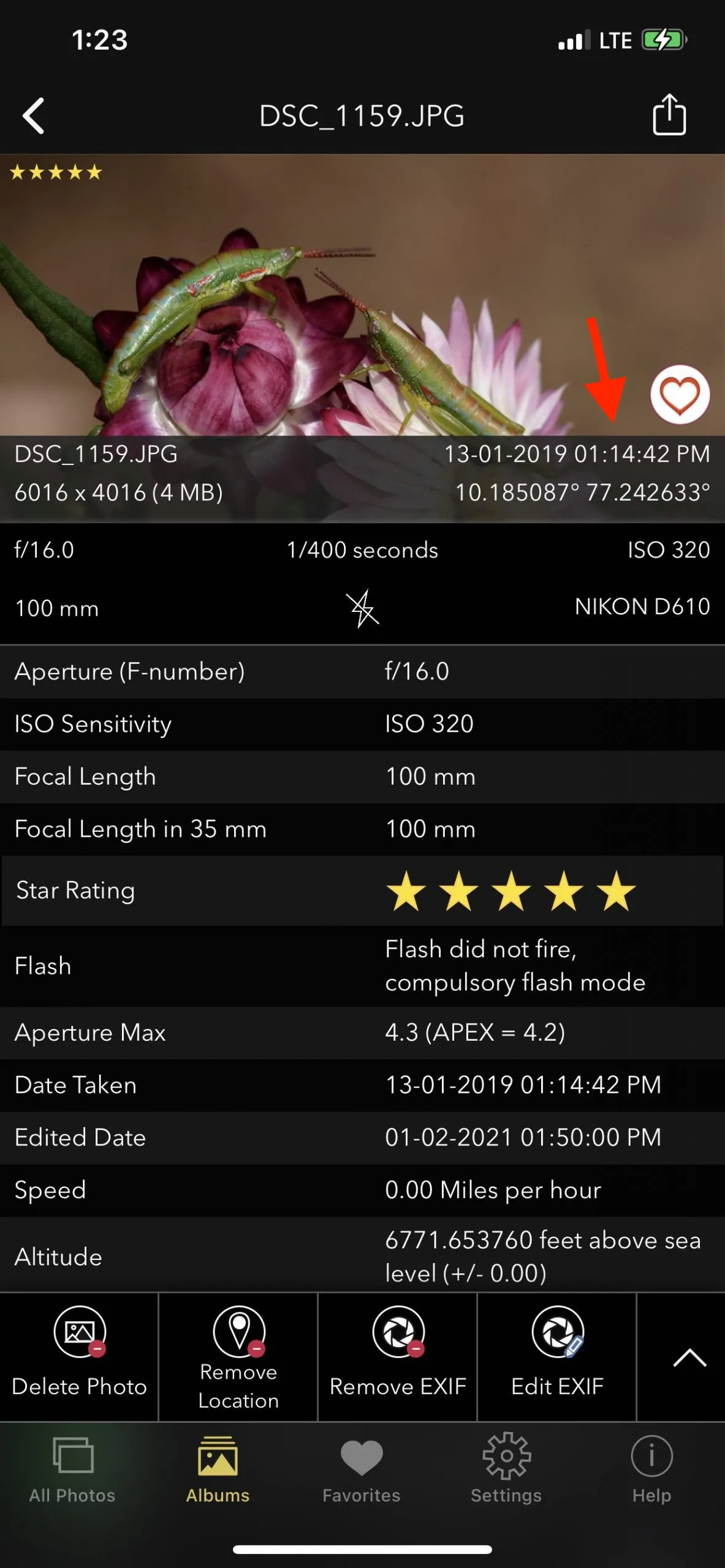
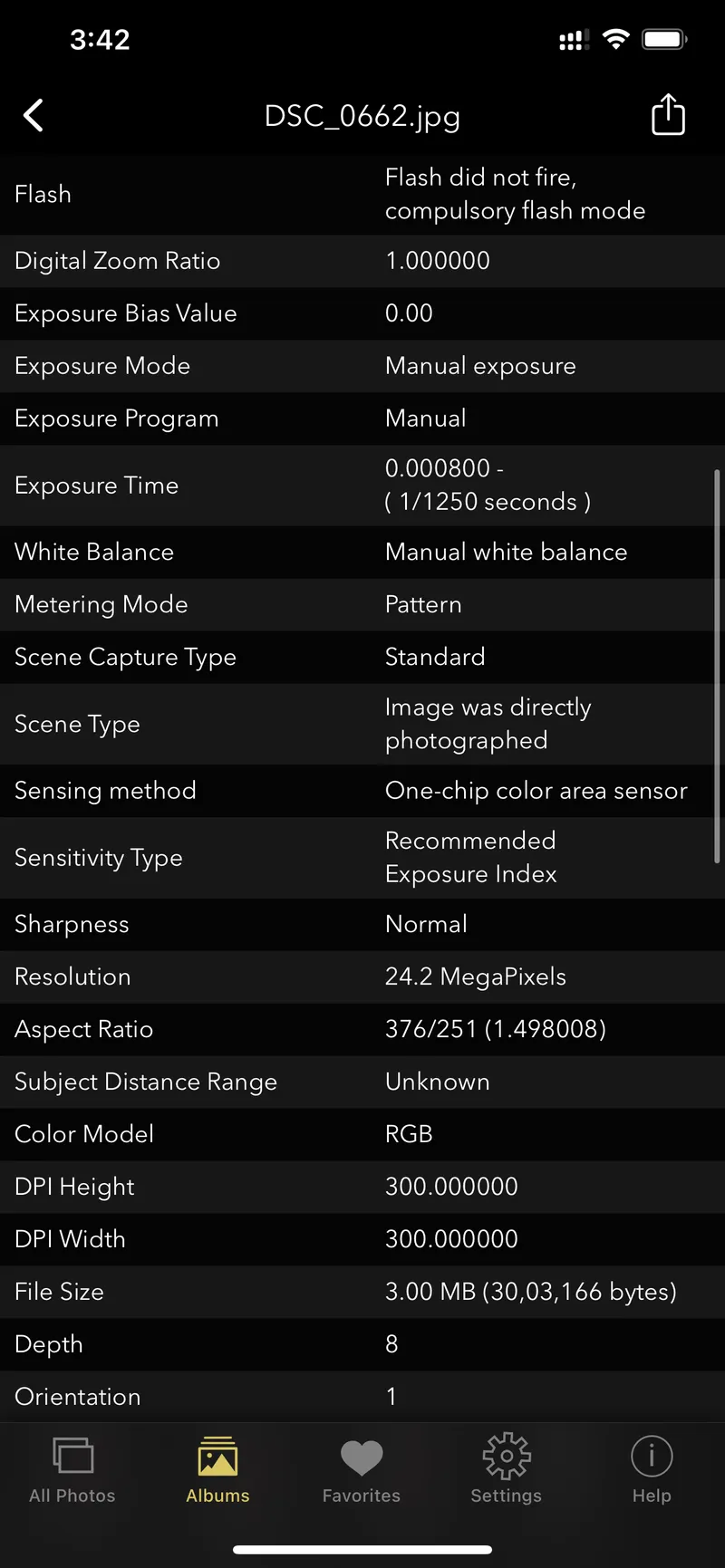
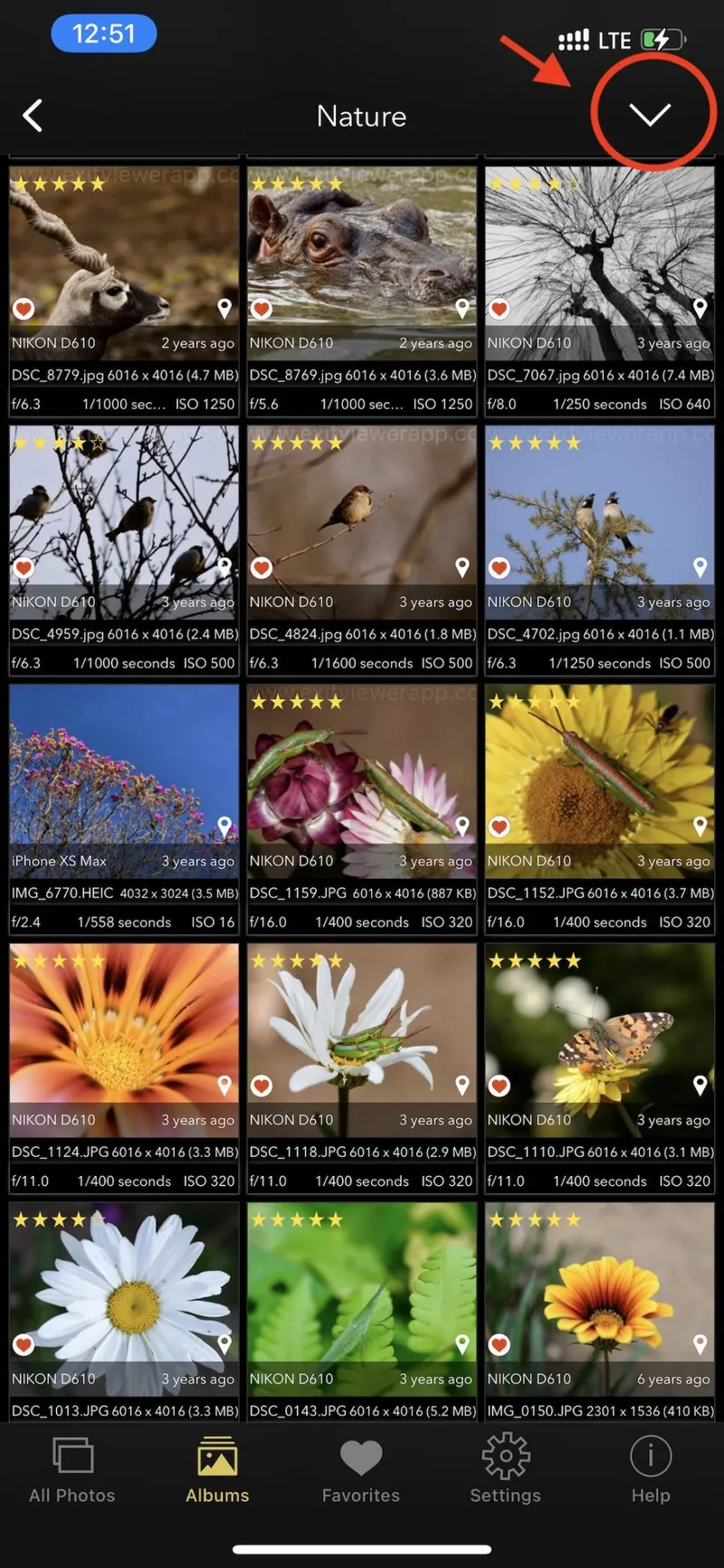
To get deeper information, such as camera settings, you can use an app like EXIF Viewer by Fluntro. This app allows you to see detailed metadata and even remove or edit EXIF data.
How to Find Photo Details on Android
Android users can also check photo details without any additional apps:
-
Open your Gallery app.
-
Select the photo and tap the three-dot menu.
-
Choose Details or Info, and you’ll see basic metadata like file size, date, and camera model.
For more advanced data like camera settings or geotagging, apps like Photo Exif Editor can be helpful.
Viewing Photo Metadata on Windows
On Windows, finding photo details is easy:
-
Right-click the image file.
-
Select Properties, then go to the Details tab.
-
Here, you’ll find information such as the camera make, model, and other technical details.
If you need even more detailed information, software like Adobe Lightroom or EXIF Pilot can give you a full breakdown of the image metadata.
Viewing Photo Metadata on Mac
On macOS, you can easily check photo metadata in the Preview app:
- Open the photo in Preview.
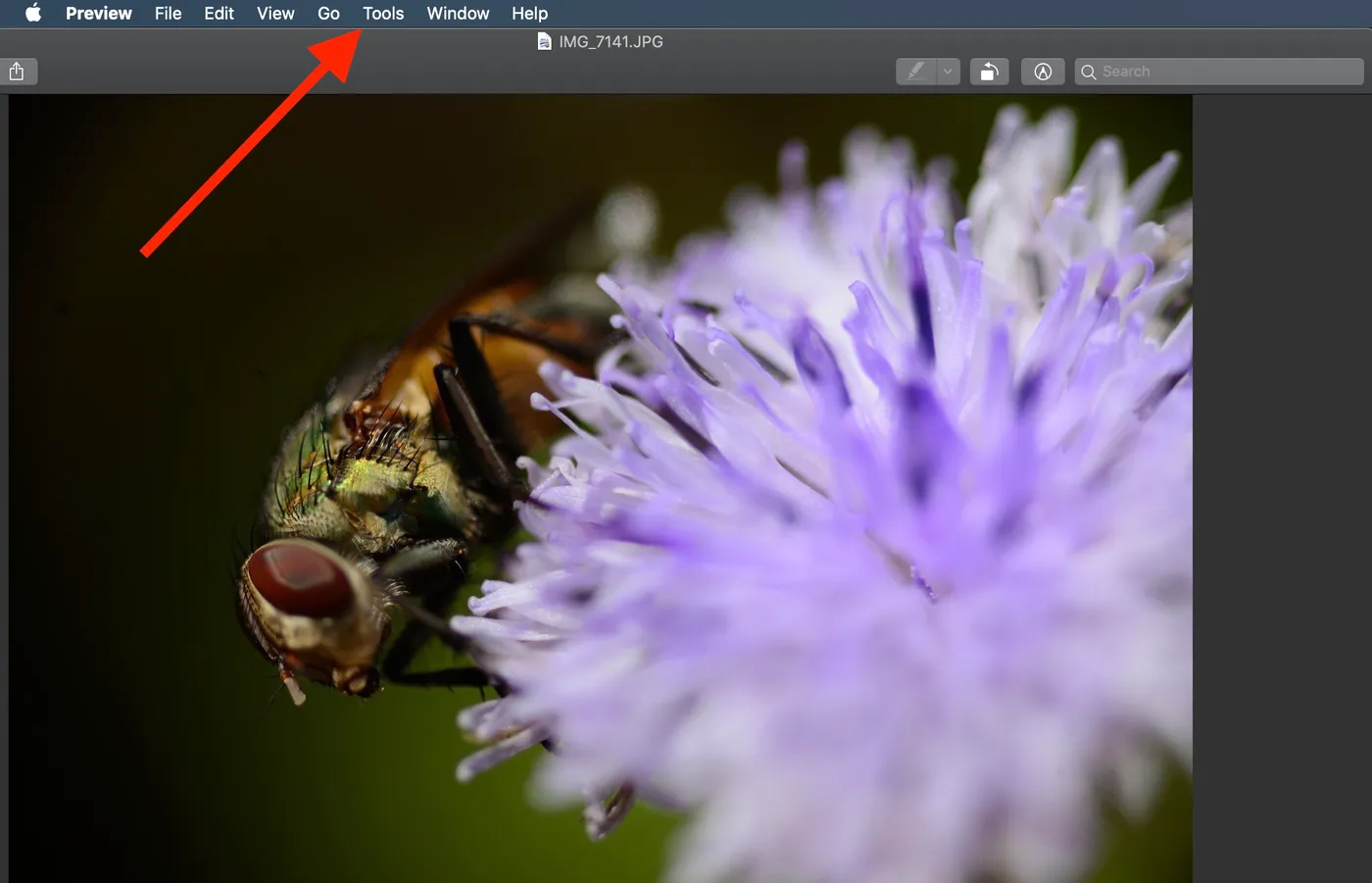
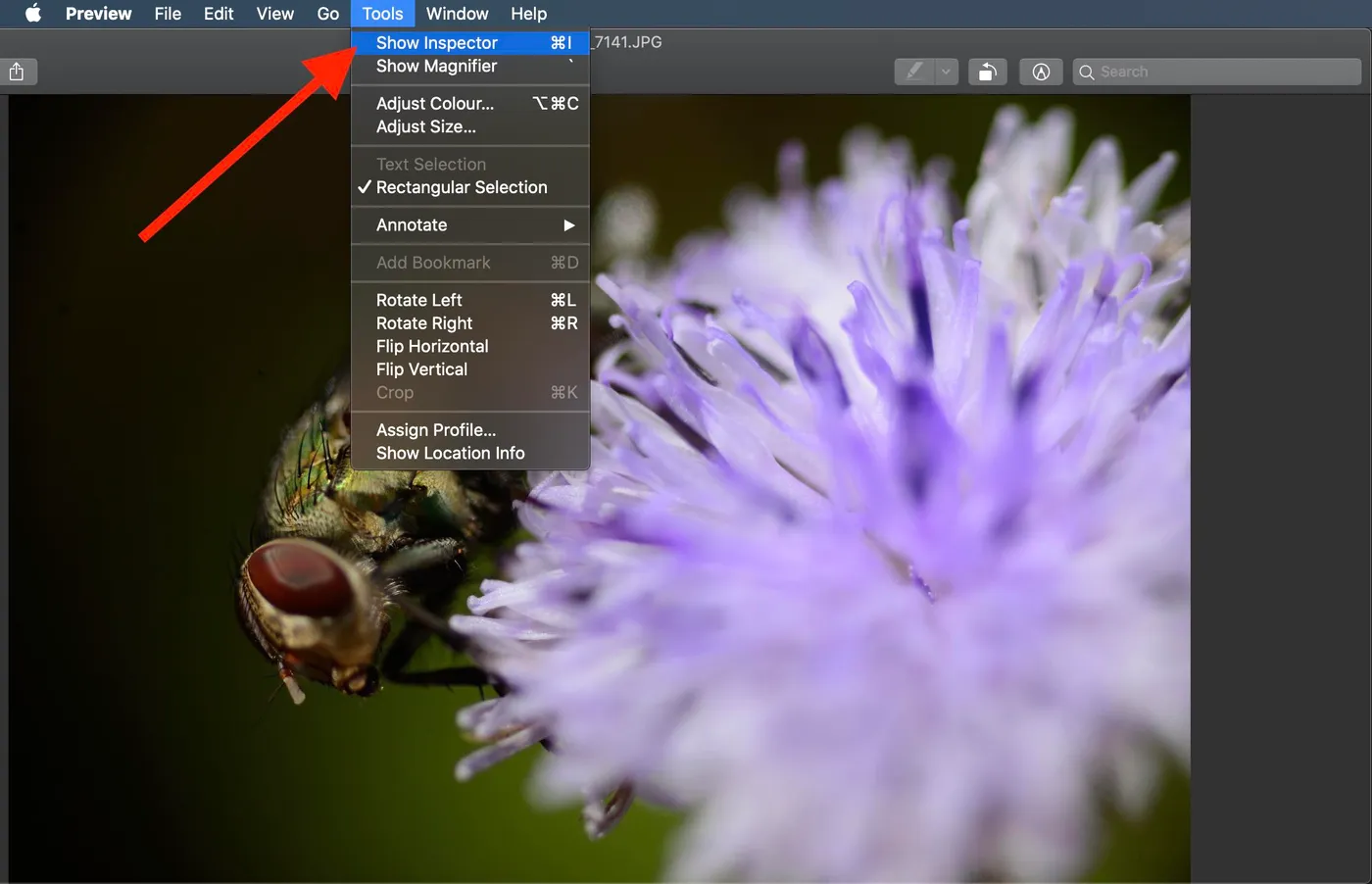
- Go to Tools > Show Inspector.
- Click the Info tab (the “i” icon), and you’ll see the photo’s EXIF data, including the camera’s settings.
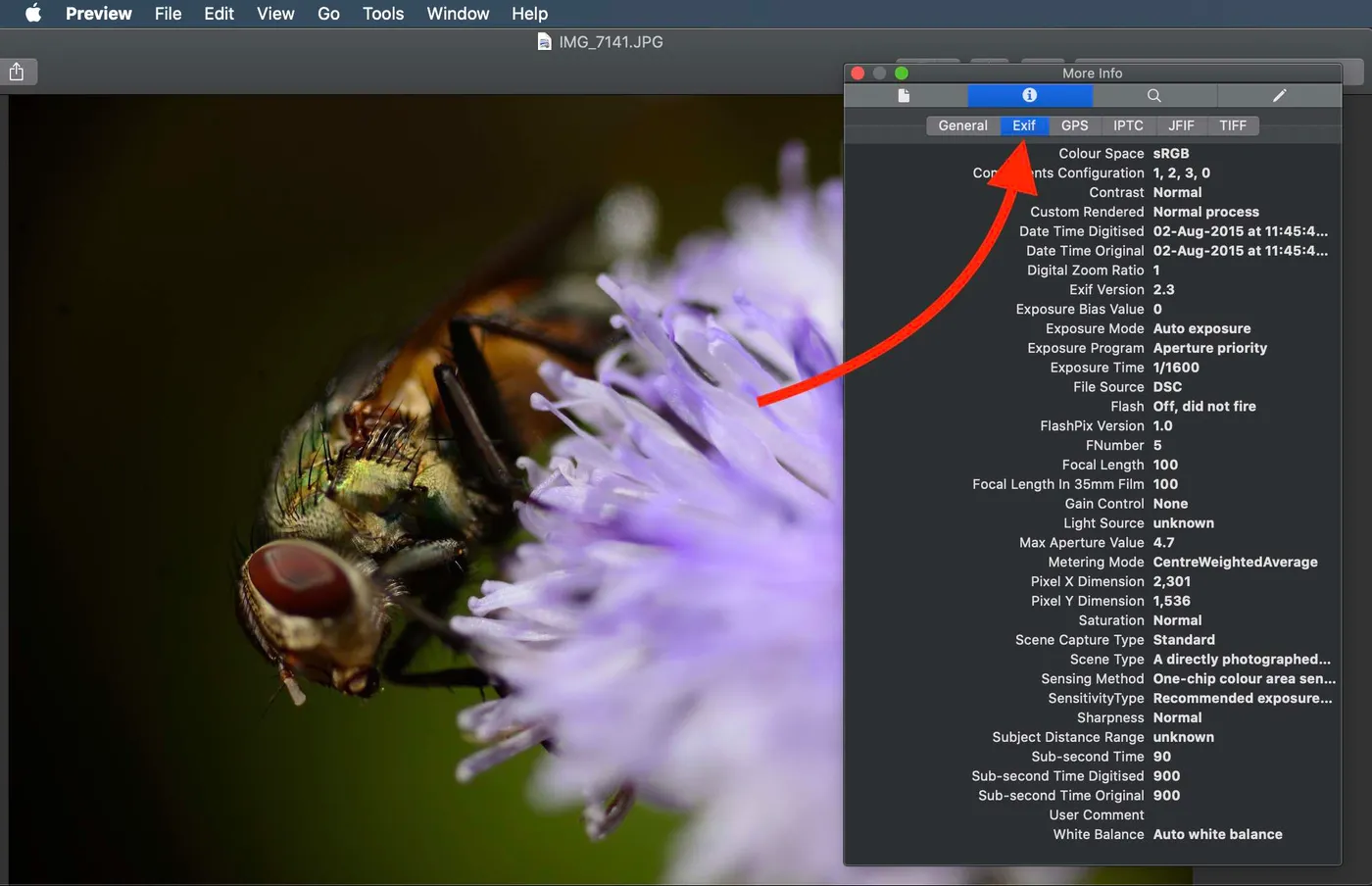
For more control over metadata, apps like EXIF Viewer by Fluntro (also available on Mac with M1 chip) are great for getting deeper insights.
How to Find Hidden Metadata in Photos
Sometimes, basic tools won’t show all the hidden details in your photos. If you want to go beyond the standard metadata and find hidden information:
-
Use dedicated software like EXIF Tool. This program allows you to see and edit all kinds of metadata, even data that’s not visible through typical apps.
-
EXIF Viewer by Fluntro also provides deep insights into photo details, making it easier to find hidden metadata with just a few taps.
Can You Remove Metadata from Photos?
Yes, you can remove metadata from photos. This is important if you want to protect your privacy before sharing images online. Here’s how:
• On iPhone, you can use the EXIF Viewer by Fluntro app to remove or edit metadata.
• On Windows, right-click the image, select Properties, and click Remove Properties and Personal Information.
• On Mac, apps like ImageOptim help strip metadata from photos.
Related Topics:
• How to find photo details on iPhone
• How to check EXIF data
• How to find hidden metadata in photos
• How do I get EXIF data from a picture?
• View photo metadata on Windows
• How to view EXIF metadata on Mac
• Best EXIF viewer apps for iPhone
• What is metadata in photos?
• Can EXIF data be removed?
• How to remove EXIF data from a photo
How to Edit or Remove Metadata for Privacy and Security
• How to find photo information
• How to Find Photo Location? –
How to view GPS location Coordinates of photos on iPhone or iPad?
Conclusion
Finding photo details can help you understand more about your images, from the camera settings to the location where the shot was taken. Whether you’re using an iPhone, Android, Windows, or Mac, there are plenty of ways to view and manage photo metadata. For those who need more control, apps like EXIF Viewer by Fluntro make it simple to view, edit, and remove metadata with ease.
By following these simple steps, you’ll have a better grasp of your photo’s details, helping you organize, edit, or share them confidently.