iPhone Photos to PDF – How to Convert them for FREE?
Learn how to convert iPhone photos to PDF for free using built-in apps like Files, Notes, or Books. Quick, easy, and no extra apps required
By Mohith K MUpdated 5 min read
In today’s digital age, managing and sharing photos from an iPhone is common, especially for projects or personal archives. Sometimes, converting these images into a PDF format is more convenient, as PDFs are universally accessible, easy to organize, and preferred for professional purposes. This guide explains the simplest ways to convert iPhone photos to PDF for free, along with tips for keeping the quality high. Whether you’re organizing files for work or creating a photo album, converting photos to PDF on an iPhone is just a few taps away.
Why Convert iPhone Photos to PDF?
Converting iPhone photos to PDF has several advantages:
- Professional Presentation: PDFs are preferred for official documents, presentations, and reports.
- Compact File Size: PDFs usually compress images, making the file size smaller and easier to share.
- Universal Compatibility: Most devices can open PDFs, so you don’t have to worry about compatibility.
- Easy to Organize: PDFs allow multiple images in one document, so it’s easy to compile related images together.
Best Ways to Convert iPhone Photos to PDF for Free
Here are the most effective, free ways to convert iPhone photos into PDFs without any special software.
Method 1: Using the Files App on iPhone
The built-in Files app on iPhones makes it easy to create PDFs from your photos, even without internet or third-party apps. Here’s how:
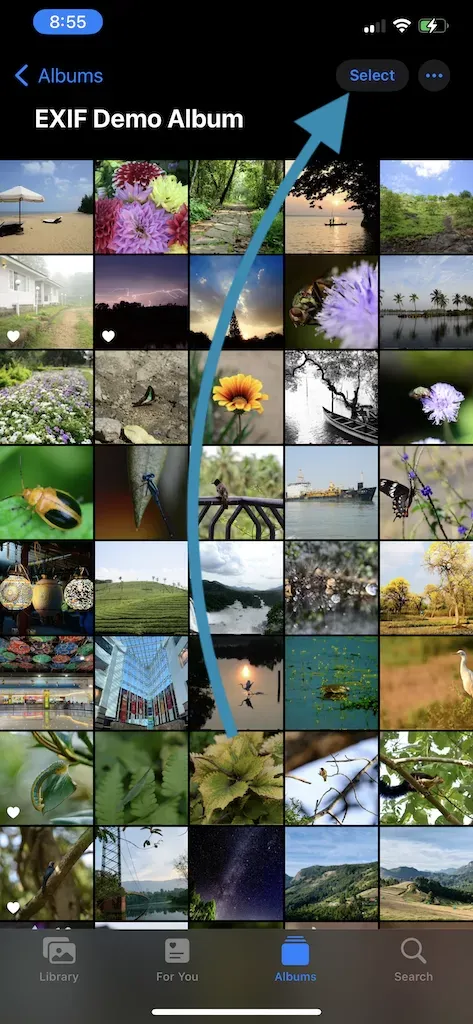
- Open the Photos App: Go to your Photos app and select the images you want to convert.
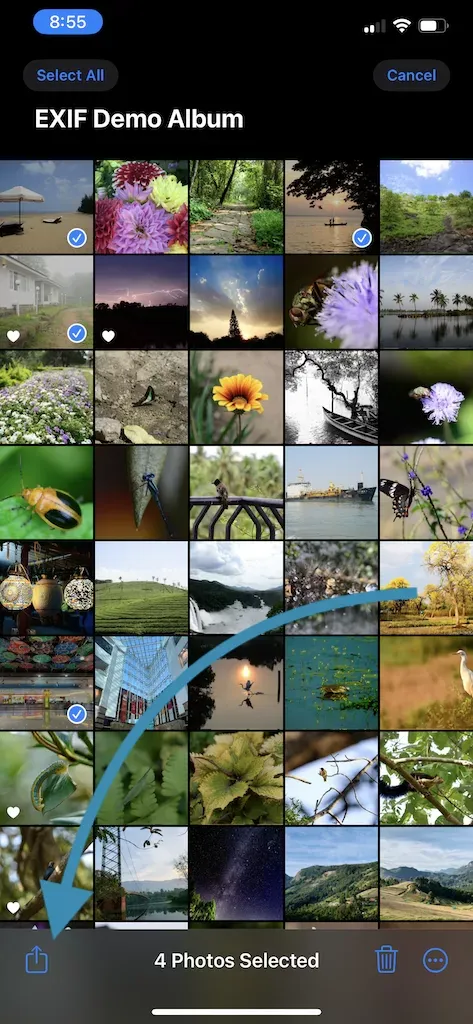
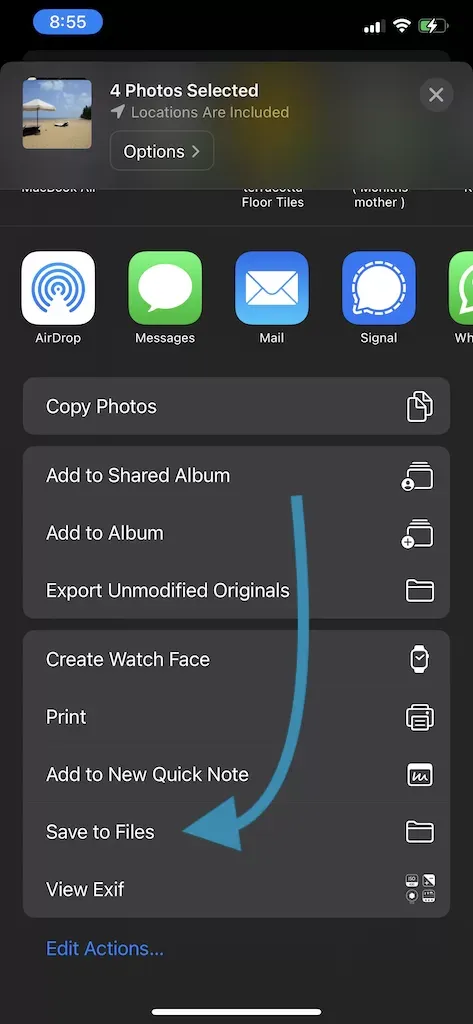
- Add to Files: Tap the share icon, then scroll down and select “Save to Files.” Choose a folder location and tap “Save.”
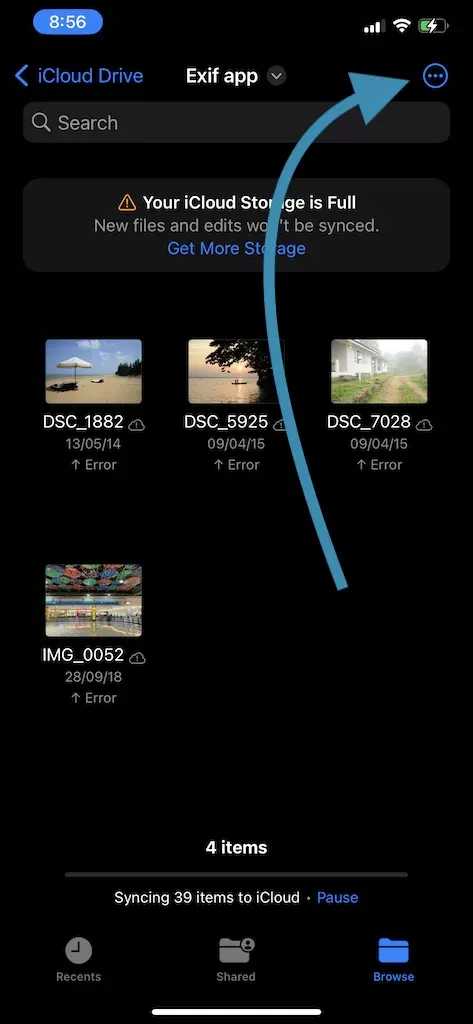
- Open Files App: Go to the Files app and locate the images you saved.
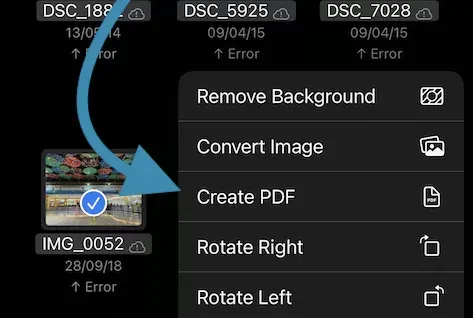
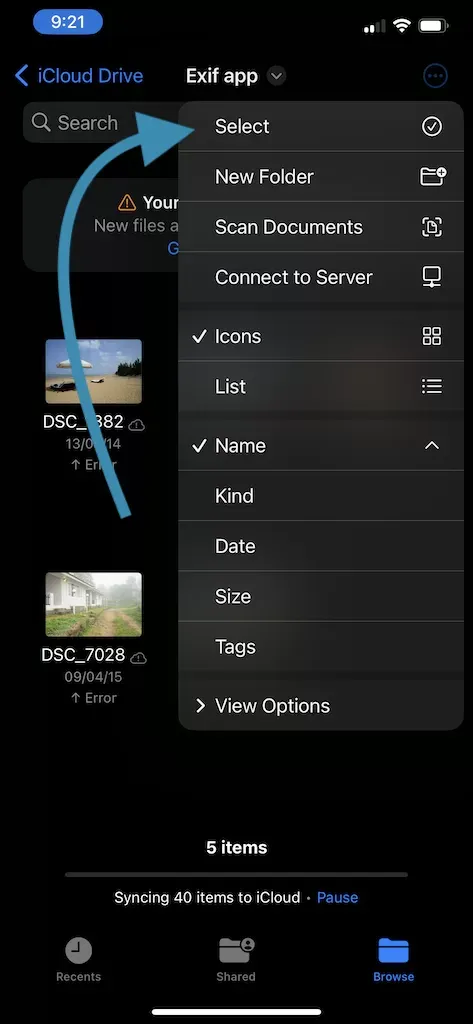
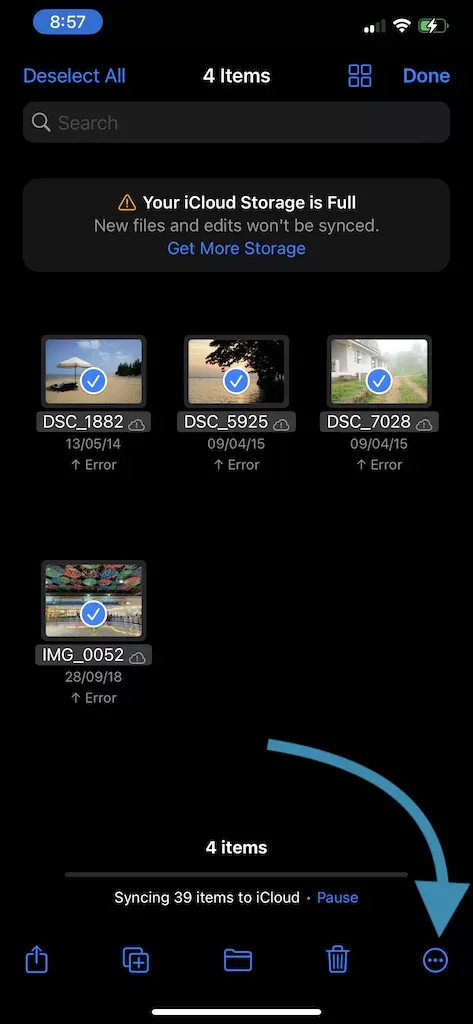
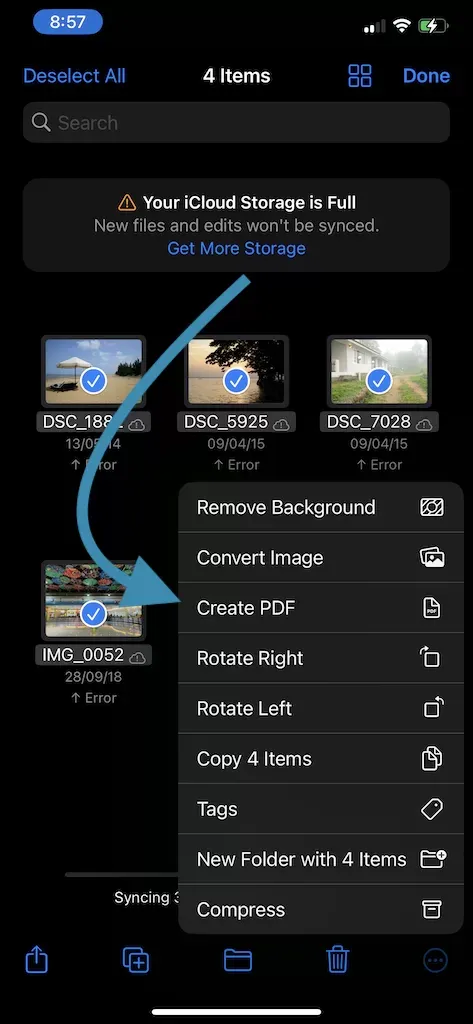
- Select and Create PDF: Tap and hold on one of the images, then select the remaining images by tapping them. Choose “Create PDF” from the menu, and Files will compile your images into a single PDF
Method 2: Using the Notes App
The Notes app is another handy tool for converting photos into PDF format, especially if you need to add some text or annotations.
- Open Notes App: Open the Notes app and start a new note.
- Insert Images: Tap on the camera icon, then select “Choose Photo or Video” and select the photos you want to add.
- Export as PDF: Once the images are in the note, tap on the share icon, scroll down, and select “Print.” When the print preview appears, pinch out on the preview image to view it as a PDF. Then, save it to Files or share it directly.
Method 3: Using Apple’s Books App
Apple’s Books app can also create a PDF from your photos. This is especially useful if you want to keep the PDF in your library for easy access.
- Save Photos to Files: Open Photos, select the images you want, and save them to Files as outlined in the first method.
- Open Files in Books: Go to Files and open the saved photos. Tap the share icon and select “Copy to Books.”
- Books Compiles PDF: The Books app automatically creates a PDF and saves it in your library, ready for viewing or sharing.
Other Free Apps to Convert iPhone Photos to PDF
If you prefer using third-party apps, here are a few free ones available on the App Store:
- PDF Photos: Specially designed to convert images to PDFs with customizable layouts.
- Adobe Scan: Adobe Scan is a powerful app for document scanning and offers photo-to-PDF conversion.
- CamScanner: Known for document management, CamScanner also converts images to PDF and is free with basic features.
These apps offer added flexibility, such as reordering pages, adjusting layouts, or adding text to PDFs.
Key Benefits of Using PDF for Photos
- Consistent Quality: PDF formats retain image quality better than most compressed photo formats.
- Easier to Print: Printing a PDF is generally more straightforward as it preserves the exact layout and resolution.
- Secure: PDFs allow password protection, which is useful for sensitive images.
Quick Tips for Converting Photos to PDF Efficiently
- Choose High-Resolution Images: Starting with high-quality images will make your PDF look more professional.
- Organize Images: Before converting, arrange the images in the right order to avoid reordering in the PDF.
- Keep File Size in Mind: If you need a smaller file size, adjust your photos to a lower resolution before converting.
Frequently Asked Questions (FAQs)
1. Can I convert Live Photos to PDF?
Yes, but the Live Photo will only appear as a still image in the PDF. Follow the same steps above.
2. Will converting to PDF reduce image quality?
Not necessarily. Using Files, Notes, or Books retains most of the image quality, though some compression might occur.
3. Can I add multiple images in one PDF?
Absolutely! You can select multiple images in Files, Notes, or Books, and the PDF will compile them into one document.
4. Are these methods secure?
Yes, Apple’s built-in apps do not require internet access for conversion, keeping your images safe.
Conclusion
Converting iPhone photos to PDF is incredibly easy with the built-in apps on your device. Using the Files, Notes, or Books apps, you can transform multiple images into a PDF in seconds without any additional downloads. PDFs are a reliable, accessible format that’s ideal for sharing or storing photos in a neat, organized manner. Start using these free methods today, and enjoy the convenience of PDFs for your personal or professional needs!
Maximize your document organization by converting your iPhone photos to PDF for free!