How to see where Photo was taken iPhone
How to see where a photo was taken on iPhone: viewing the location, enabling location services, and managing the EXIF that stores it.
By Mohith K MUpdated 4 min read
Have you ever looked at a photo on your iPhone and wondered, “Where exactly was this taken?” Thanks to the powerful features in iOS, your iPhone can capture and store location data for photos. This data, known as EXIF metadata, includes GPS coordinates, which allow you to quickly find where a photo was taken. In this blog, we’ll guide you step-by-step on how to view a photo’s location directly on your iPhone. Plus, we’ll include tips to troubleshoot common issues and answer frequently asked questions.
What is EXIF Metadata?
EXIF (Exchangeable Image File) metadata is a type of data embedded in every photo taken on a digital camera or smartphone. It includes details like:
- Date and time the photo was taken
- Camera settings (shutter speed, ISO, aperture)
- GPS coordinates (location information)
- Device name and model
Your iPhone automatically captures and stores this data for photos, provided you have enabled location services.
Step-by-Step Guide to See Where a Photo Was Taken on iPhone
Here’s how you can easily check the location of a photo on your iPhone:
Step 1: Open the Photos App
- Launch the Photos app on your iPhone.
- Navigate to the photo you want to check.
Step 2: Access the Photo Details
- Tap on the photo to open it in full screen.
- Swipe up on the photo, or tap the info (i) button at the bottom.
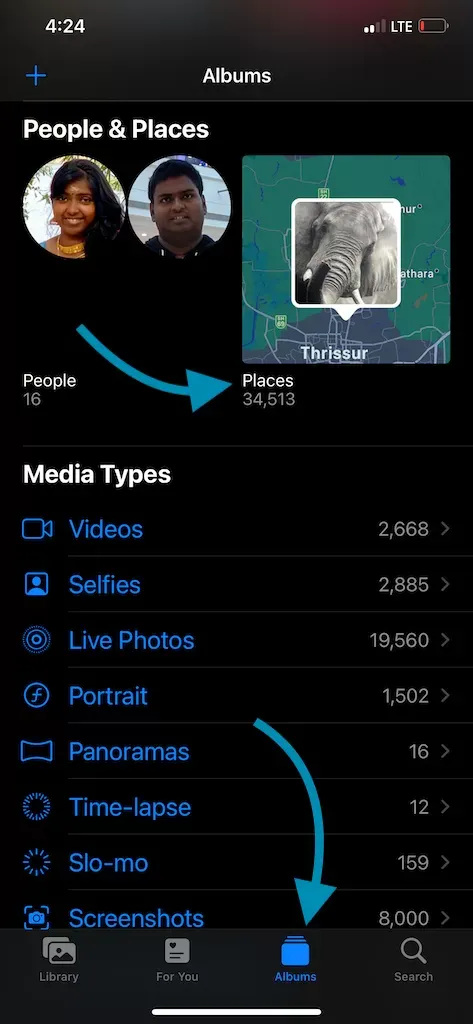
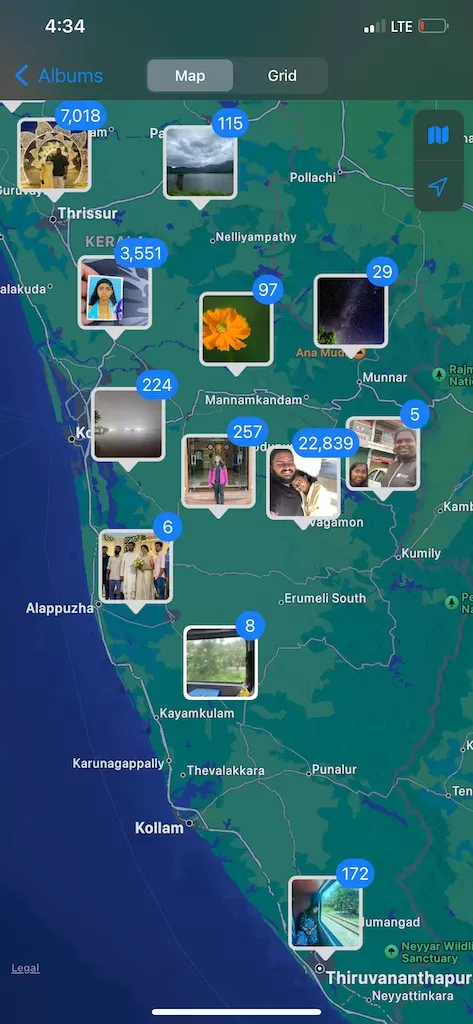
Step 3: View Location on the Map
Step 4: Explore Location Information
• The map will display the address or nearby landmarks.
- If the photo contains GPS data, a small map will appear showing where the photo was taken.
- Tap on the map to enlarge it for more details.
• You can even open the location in the Maps app by tapping on the map, which allows you to get directions or explore the surrounding area.
What to Do If Location Is Missing from a Photo
Sometimes, a photo might not show location details. Here’s why this happens and how to fix it:
1. Check if Location Services Are Enabled
- Go to Settings > Privacy & Security > Location Services.
- Ensure Location Services is turned on.
- Scroll down to Camera and set it to While Using the App.
How to turn ON or OFF Photo geotagging on your iPhone or iPad
2. Verify Photo Settings
- Open Settings > Camera.
- Make sure Location Tagging is enabled.
3. Location Not Recorded for Old Photos?
If you imported a photo from another device or took it with a camera without GPS, the location might not be available. You can manually add location details using the Photos app:
- Open the photo.
- Swipe up or tap the info (i) button.
- Tap Add Location and search for the place.
How to View EXIF Metadata for More Details
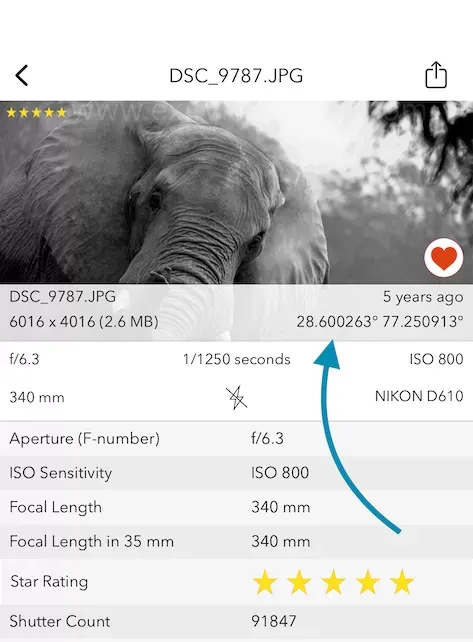
If you want to dive deeper into a photo’s metadata beyond just the location, consider using apps like EXIF Viewer by Fluntro. This app allows you to see and edit metadata, including:
- Camera details
- Photo resolution
- GPS coordinates
EXIF Metadata displayed using EXIF Viewer by Fluntro
EXIF Metadata Viewer with location map view
Download EXIF Viewer by Fluntro today for easy metadata access and editing: EXIF Viewer by Fluntro.
FAQs About Photo Location on iPhone
Can I remove location data from a photo?
Yes! To remove location data before sharing:
- Open the photo in the Photos app.
- Tap the Share button.
- Tap Options at the top and toggle off Location.
How do I know if my photo has location data?
If you swipe up on a photo and don’t see a map, the location data is missing. You can also use EXIF viewer apps to confirm.
Can I add location data to a photo?
Yes, you can manually add a location by swiping up on the photo and tapping Add Location.
Conclusion
Knowing how to see where a photo was taken on your iPhone can be incredibly useful for reliving memories or sharing location details with friends. By following the steps above, you can quickly access photo locations or troubleshoot if location data is missing.
For those who want more advanced control over photo metadata, apps like EXIF Viewer by Fluntro make it easy to manage and edit EXIF data, giving you a professional edge.
Did you find this guide helpful? Share your thoughts or questions in the comments below! Don’t forget to bookmark this page and share it with others looking for simple tips on iPhone photo management.